ChatGPT Prompt for Vintage Photo Editing: 10 Film Looks
10 ChatGPT prompts for vintage photo editing: 1970s snapshots, 1990s disposable prints, faded film color, grain, and borders for your own photos, faces kept.
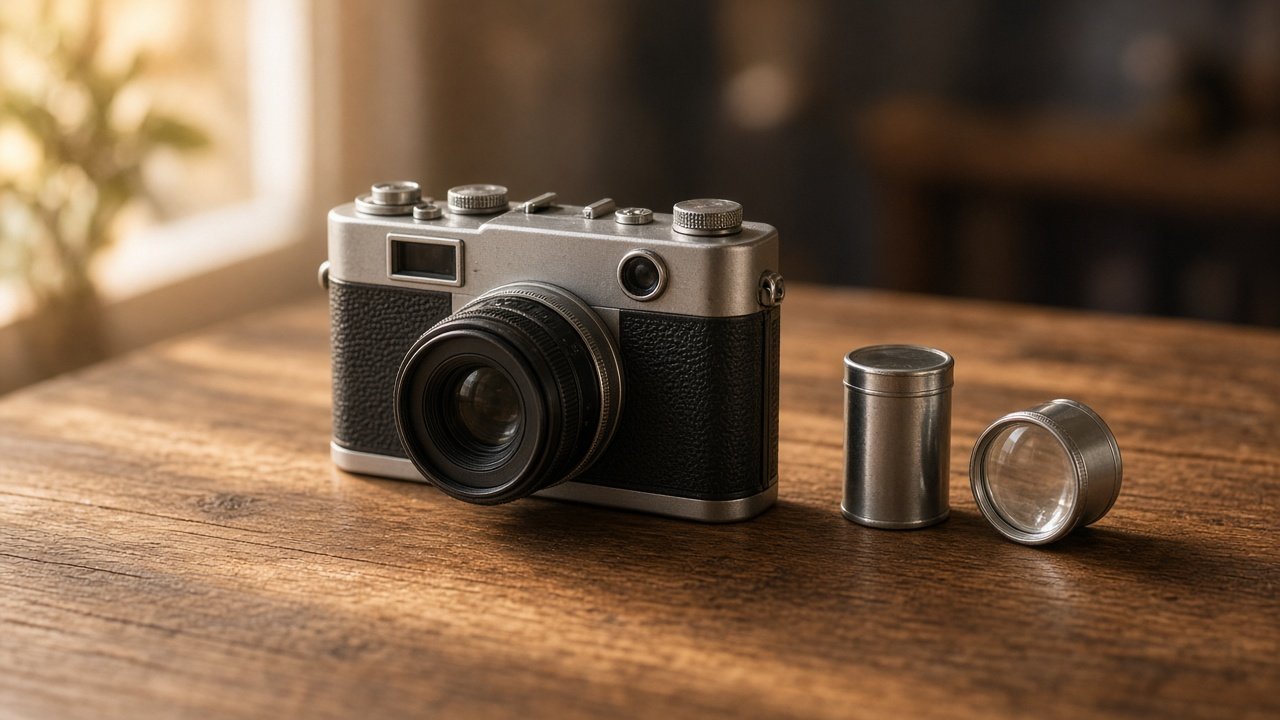
A ChatGPT prompt for vintage photo editing gives your own modern photo the look of an older film era, such as a warm 1970s snapshot or a 1990s disposable camera print, while keeping faces and framing the same. Upload your photo in ChatGPT, describe what is in it from left to right, and ask for one edit with a clear keep list. The 10 prompts below are grouped by era and by fix, and each one is copy-paste ready.
Get consent before editing photos of real people, label results as edited, and never pass off a vintage-styled edit as a genuine historical photo.
Classic film eras
1. 1970s summer snapshot
Edit this photo; keep everything the same except: give it a 1970s summer snapshot look with warm yellow and orange tones, faded blacks, soft contrast, and fine grain. Keep [faces and objects] and the crop exactly as they are.
2. 1960s faded print
Edit this photo of [contents] to look like a faded 1960s color print: slightly washed out colors, a gentle cyan tint in the shadows, and soft focus at the edges. Do not change any face or add anything.
3. 1980s flash party photo
Give this indoor photo of [contents] a 1980s direct flash look: bright subjects, darker background, saturated colors, and visible grain. Keep every person's face and pose unchanged.
4. 1990s disposable camera print
Make this photo of [contents] look like a 1990s disposable camera print: slightly green shadows, punchy color, soft detail, and a little blur at the corners. Keep the crop and every face as they are.
Film color and texture
5. Warm cast only
Keep this photo exactly the same but shift the colors toward [warm yellow or faded red] and lift the blacks a little. Change nothing else.
6. Grain without blur
Add [fine or visible] film grain across this whole photo of [contents], but keep faces and edges sharp. No other changes.
7. Print border
Add a [thin white or wide cream] print border around this photo without cropping or stretching the image inside it.
Fix and check the result
8. Undo a face change
The edit changed [person]'s face. Undo the change to the face and keep it exactly as in my original photo, while keeping the [era] look on the rest of the image.
9. Remove added details
The edit added [object, text, or date stamp]. Remove it and keep everything else, including the vintage color and grain.
10. Before and after checklist
Compare my original photo with the vintage edit and list any changes to faces, hands, number of objects, text, or the frame edges, so I can ask for fixes.
Write a full vintage edit request in one prompt
The flagship Vintage Photo Editing Prompt: Pick an Era, Keep the Faces takes what is in your photo, the era, color cast, fade, grain, border, keep list, and things to avoid, and writes one edit request with two variations, a check list, and a fix message. Its example turns a sunny boardwalk photo of a sister and her red bicycle into a warm 1970s snapshot with a thin white border.
How editing works in ChatGPT
According to OpenAI's Images in ChatGPT help page, you can upload an existing image and describe the changes you want, or select part of the image with the selection tool and describe the change. The same page notes that highlights are not always precise and edits may extend beyond the selected area, so compare every result with your original. Use only your own photos or photos you have permission to edit, never make a person look like someone else, and label the result as an edited photo when you share it.
Related prompts
For monochrome looks, see ChatGPT photo prompts for black and white and the black and white photo prompt. To repair real old photos instead of styling new ones, use the old photo restoration prompt and read ChatGPT prompt to restore old photos. For everyday fixes, browse ChatGPT prompts for photo editing.
Find more in the Photography category, look through Browse, or post your own on Share.