📁 Photography
Vintage Photo Editing Prompt: Pick an Era, Keep the Faces
Write one ChatGPT Images edit request that gives your own photo a chosen film era look: color cast, fade, grain, and print border, with faces and framing kept.
0Reviews
Prompt
Act as a film photo lab color technician and ChatGPT Images editing coach who writes one edit request that gives my own modern photo the look of a chosen film era, with its color cast, fade, grain, and print border, while keeping the people, faces, and framing exactly as they are.

Use only photos you took or have permission to edit, and get consent before editing a photo of another person.

Inputs:
- What is in my photo, from left to right: [PhotoContents]
- The era and kind of photo I want it to look like (for example a 1970s summer snapshot, a 1990s disposable camera print): [Era]
- Color cast I want (warm yellow, faded red, cool green shadows): [ColorCast]
- Fade and contrast (faded blacks, soft or punchy contrast): [FadeAndContrast]
- Grain and wear (fine grain, visible grain, slight softness, dust or none): [GrainAndWear]
- Print border, if any (thin white border, none): [PrintBorder]
- What must not change (faces, expressions, hands, objects, crop): [KeepList]
- What to avoid (light leaks, date stamps, sepia, scratches): [Avoid]

Generate:
1. Era look card: three lines describing the look of Era in color, contrast, and grain terms, as a style description, not a claim about any specific film stock.
2. Photo read-back: one line per subject or area in PhotoContents and how its color shifts under ColorCast and FadeAndContrast.
3. Edit request: one paragraph to paste into ChatGPT with my uploaded photo. Start with "Edit this photo; keep everything the same except:" then the Era look, ColorCast, FadeAndContrast, GrainAndWear, and PrintBorder. End with KeepList and Avoid written as plain rules.
4. Two variations: subtle and strong, each changing only the color and fade sentences.
5. Check after the result: compare faces and expressions, hands, the number and position of objects, any text or signs, and the frame edges with my original, plus the exact follow-up message to send if something changed.
6. Selection tip: if only part of the photo looks wrong, use the selection tool on that area and describe the fix, knowing highlights are not always precise.
7. Sharing note: one line on labeling the result as an edited photo so no one mistakes it for a real old photo.

Rules:
- Do not add, remove, or describe anything that is not in PhotoContents.
- No celebrity look-alikes and no changes to a person's identity, age, or body.
- One edit of the uploaded photo, not a new image from scratch.
Instructions
Upload your own photo in ChatGPT, fill in what is in it from left to right, then paste the edit request. Compare the result with your original before sharing, label it as an edited photo, and get consent before editing photos of other people. Edit only photos you own or have permission to use, and get consent from people shown. Do not present an edited photo as a genuine historical photograph or use it to mislead about when or where it was taken.
Generated Output
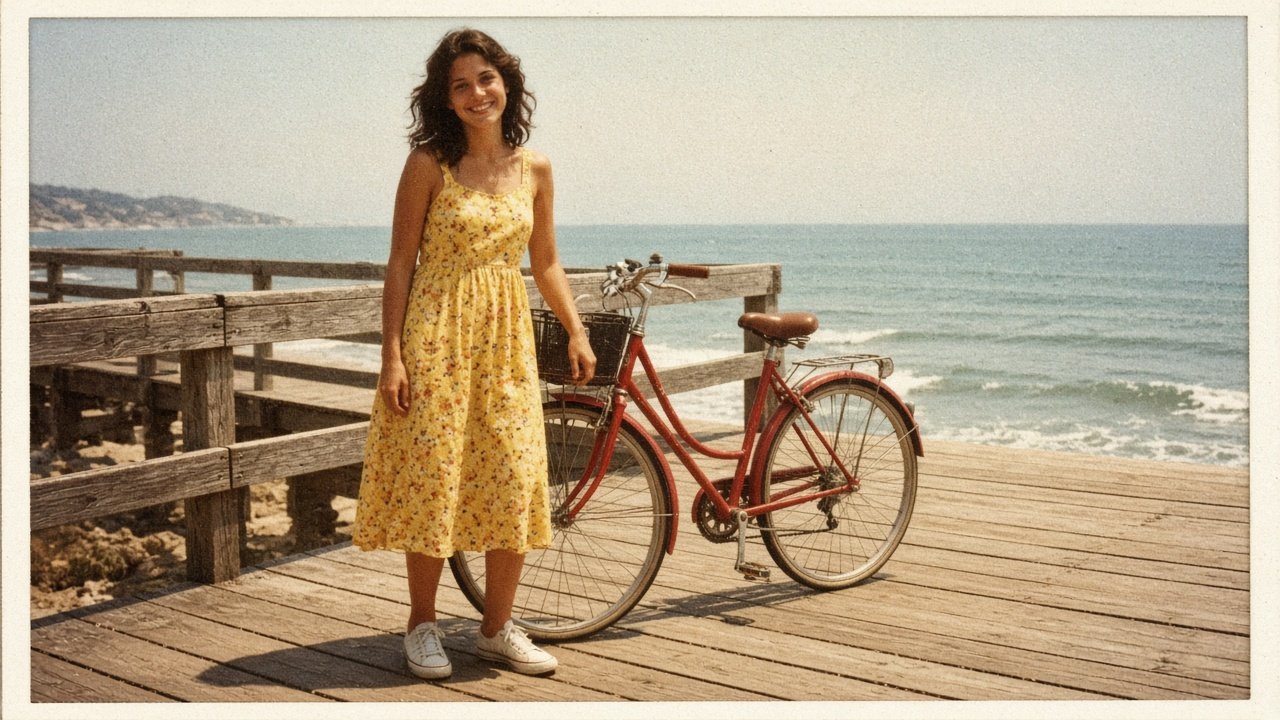
This image was generated using the prompt above.
Examples
Example Input
PhotoContents: my sister standing on the left side of the frame on a wooden seaside boardwalk, wearing a yellow sundress and white sneakers, smiling at the camera; her red bicycle standing next to her, to the right of her in the frame; the ocean in the background on the right; bright midday sun
Era: 1970s summer snapshot
ColorCast: warm yellow and orange, slightly faded reds
FadeAndContrast: faded blacks, soft contrast
GrainAndWear: visible fine grain, a little overall softness, no dust
PrintBorder: thin white border
KeepList: her face and smile, her hands, the bicycle, the crop
Avoid: no light leaks, no date stamp, no sepia, no scratches
Example Output
1. ERA LOOK CARD
Color: warm yellow and orange tones; reds a little faded; blue sky slightly washed out.
Contrast: soft, with lifted blacks that read as dark brown-gray, not pure black.
Grain: visible fine grain and a gentle softness, like a small print from a snapshot camera.

2. PHOTO READ-BACK
- Your sister, left: skin warmer; yellow sundress stays yellow but softer; white sneakers turn creamy.
- Red bicycle, to the right of her: red shifts slightly toward orange and loses some saturation.
- Wooden boardwalk: warmer honey tone, grain visible in the wood.
- Ocean, background right: blue turns softer and a little green.
- Midday sun: highlights stay bright but not clipped.

3. EDIT REQUEST
Edit this photo; keep everything the same except: give it the look of a 1970s summer snapshot. Shift the colors warm, toward yellow and orange, with slightly faded reds. Lift the blacks so the darkest areas are faded brown-gray, and keep the contrast soft. Add visible fine grain and a little overall softness across the whole frame, with no dust. Add a thin white border around the photo. Keep her face, smile, and expression exactly as they are, keep her hands unchanged, keep the red bicycle and its position, and keep the original crop. No light leaks, no date stamp, no sepia, and no scratches.

4. VARIATIONS
A) Subtle: replace the color and fade sentences with "Shift the colors slightly warm and lift the blacks just a little."
B) Strong: replace them with "Shift the colors strongly toward yellow and orange, fade the reds and blues more, and lift the blacks to a soft brown-gray."

5. CHECK AFTER THE RESULT
- Her face and smile: same person, same expression?
- Her hands: same position, same number of fingers?
- Objects: one red bicycle, still to the right of her in the frame; boardwalk and ocean unchanged; nothing added?
- Text: no date stamp or writing added?
- Frame: same crop inside the new white border?
If something changed, send: "Undo the change to [part]; keep it exactly as in my original photo and keep the 1970s look."

6. SELECTION TIP
If only the ocean or the bicycle looks off, select that area, describe the fix, and check the edges, since highlights are not always precise and edits can spread past the selection.

7. SHARING NOTE
Caption it as an edited photo, for example "1970s style edit", so no one takes it for a real photo from that time.