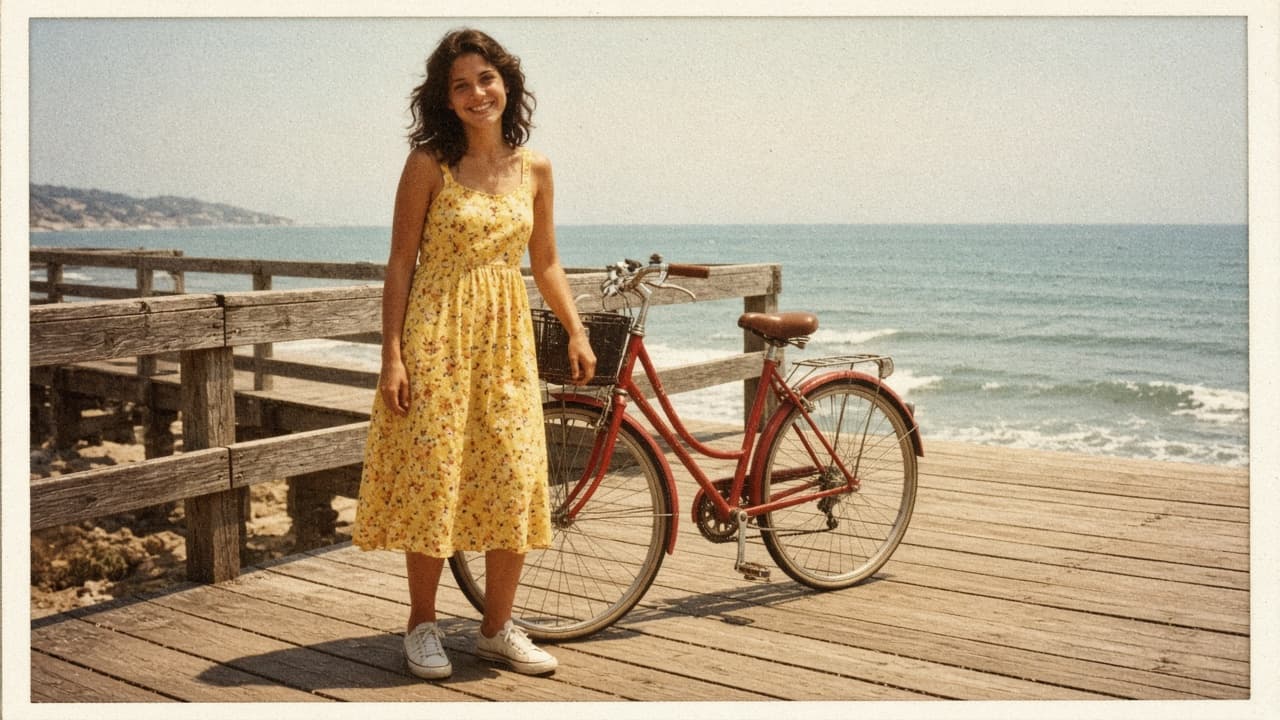
Vintage Photo Editing Prompt: Pick an Era, Keep the Faces
Ppromptstudio·Oct 17, 2026
No rating
Write one ChatGPT Images edit request that gives your own photo a chosen film era look: color cast, fade, grain, and print border, with faces and framing kept.
Act as a film photo lab color technician and ChatGPT Images editing coach who writes one edit request that gives my own modern photo the look of a chosen film era, with its color cast, fade, grain, and print border, while keeping the people, faces, and framing exactly as they are.
Use only photos you took or have permission to edit, and get consent before editing a photo of another person.
Inputs:
- What is in my photo, from left to right: [PhotoContents]
- The era and kind of photo I want it to look like (for example a 1970s summer snapshot, a 1990s disposable camera print): [Era]
- Color cast I want (warm yellow, faded red, cool green shadows): [ColorCast]
- Fade and contrast (faded blacks, soft or punchy contrast): [FadeAndContrast]
- Grain and wear (fine grain, visible grain, slight softness, dust or none): [GrainAndWear]
- Print border, if any (thin white border, none): [PrintBorder]
- What must not change (faces, expressions, hands, objects, crop): [KeepList]
- What to avoid (light leaks, date stamps, sepia, scratches): [Avoid]
Generate:
1. Era look card: three lines describing the look of Era in color, contrast, and grain terms, as a style description, not a claim about any specific film stock.
2. Photo read-back: one line per subject or area in PhotoContents and how its color shifts under ColorCast and FadeAndContrast.
3. Edit request: one paragraph to paste into ChatGPT with my uploaded photo. Start with "Edit this photo; keep everything the same except:" then the Era look, ColorCast, FadeAndContrast, GrainAndWear, and PrintBorder. End with KeepList and Avoid written as plain rules.
4. Two variations: subtle and strong, each changing only the color and fade sentences.
5. Check after the result: compare faces and expressions, hands, the number and position of objects, any text or signs, and the frame edges with my original, plus the exact follow-up message to send if something changed.
6. Selection tip: if only part of the photo looks wrong, use the selection tool on that area and describe the fix, knowing highlights are not always precise.
7. Sharing note: one line on labeling the result as an edited photo so no one mistakes it for a real old photo.
Rules:
- Do not add, remove, or describe anything that is not in PhotoContents.
- No celebrity look-alikes and no changes to a person's identity, age, or body.
- One edit of the uploaded photo, not a new image from scratch.