ChatGPT Prompt to Restore Old Photos: How to Do It Right
Use a ChatGPT prompt to restore old photos: scan well, list the damage, keep faces unchanged, colorize carefully, and fix common AI mistakes.
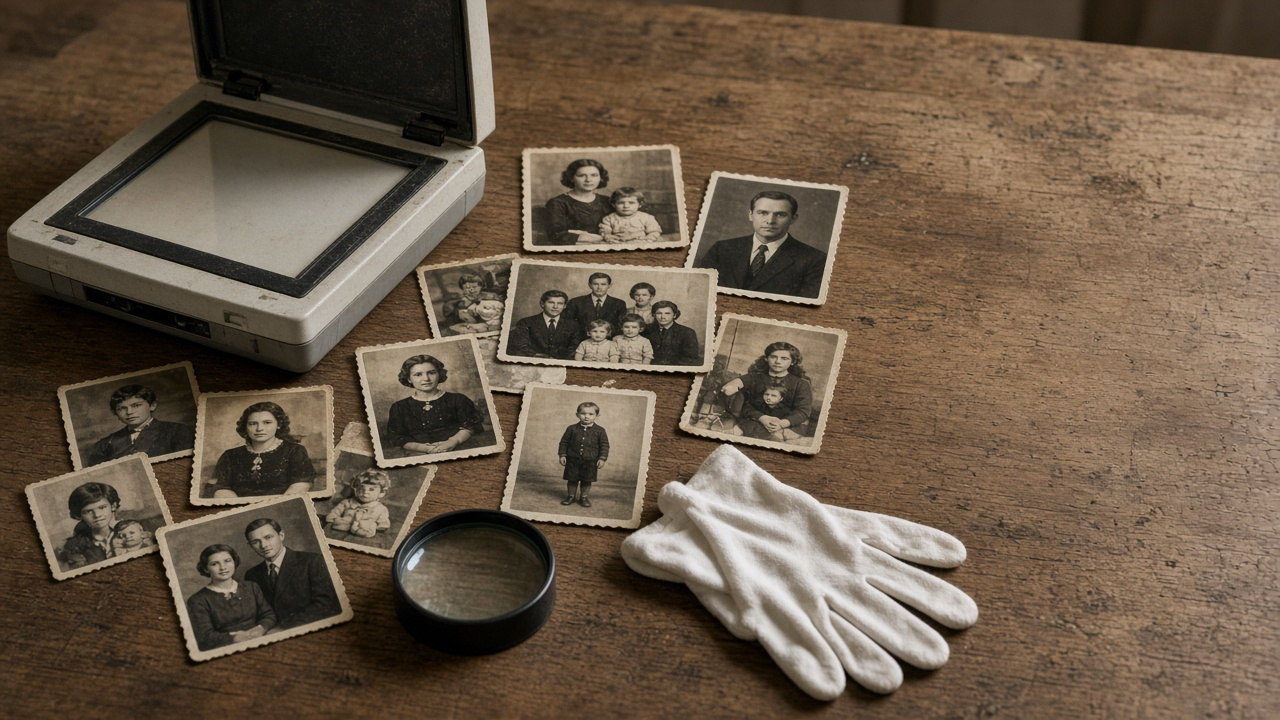
The ChatGPT prompt to restore old photos that works best is specific: upload a clean scan, name each kind of damage and where it sits, and tell the model to keep faces, pose, and framing exactly as they are. Then compare the result side by side with the original. Colorize in a separate step, using only colors your family actually remembers.
The prompts below work with ChatGPT's image editing when you upload a photo, and the same wording works in other AI image editors. Results vary by tool, plan, and photo, so always keep your original scan.
Step 1: Make a good scan first
AI restoration starts from whatever you give it. Scan the print flat on a scanner instead of photographing it with a phone, especially if the paper is glossy. Crop off ragged borders, but keep an untouched copy of the scan as your master file.
Step 2: List the damage before you prompt
Look at the photo and write down every problem and where it sits: a crease across the top left corner, scratches over a face, a water stain along the bottom, fading, a missing corner. A specific list gets far better results than "fix this photo," because the model knows what to remove and what to leave alone.
Step 3: Paste a restoration prompt that protects faces
The most common failure is a restored photo where someone no longer looks like themselves. Tell the model plainly what must not change. Copy this and edit the [brackets]:
Restore this old [black and white or color] photo from about [decade]. Remove [damage 1 and its location], [damage 2 and its location], and [damage 3]. Rebuild [missing area] using only the surrounding [background]. Correct the fading and restore natural contrast. Keep every face, expression, eye, hairstyle, pose, piece of clothing, and the background exactly as they are. Do not smooth skin, change features, add people or objects, or modernize anything. Keep the natural film grain.
Step 4: Colorize as a second step
Approve the black and white repair first, then colorize the repaired version. Give the model every color you know for sure and let it choose muted tones for the rest:
Colorize this restored photo. [Person or object] is [known color]. [Person]'s hair is [color] and eyes are [color]. Use muted, natural [decade] photo tones for everything else, and keep every face and detail unchanged.
Any color you did not supply is a guess. Say so when you share the photo, so nobody mistakes a guessed dress color for family history.
Step 5: Fix common AI mistakes
If the first result misses, do not start over with a new vague prompt. Send a short correction:
- Changed face: "The [person]'s face no longer matches the original. Redo it and keep the face exactly as in the uploaded photo."
- Plastic skin: "Skin looks too smooth. Restore natural texture and film grain."
- Invented detail: "Remove the [added object]. The background is [what it really is]."
- Wrong crop: "Keep the full original framing. Do not crop the edges."
Step 6: Review before you print
Open the original and the result side by side at full size. Check faces and eyes first, then hands, ears, jewelry, patterns, and any area the model rebuilt. Reject any version where someone looks like a different person, even if the rest looks better. For a large print, check whether the file is sharp enough and use a separate upscaler if needed.
Get a custom restoration plan
For a photo that matters, use the Old Photo Restoration Prompt for ChatGPT Image Editing. You describe the damage, the era, what the family knows for sure, and what the file is for, and it returns a scan check, a damage map, a ready to paste restoration prompt, colorization rules with the guessed colors listed, follow up fixes, a review checklist, and print notes. The example on the prompt page restores a 1940s wedding portrait for a framed family reunion print.
What AI restoration cannot do
An AI model does not recover lost detail. It reconstructs what was probably there. That is fine for a family print, but label the file as AI restored and keep the original scan with it, especially for genealogy or archive use.
More design prompts
See the Design prompts hub for more image and layout prompts, browse more prompts, or share a prompt that gave you a great restoration.