How to Use the USPS Every Door Direct Mail Campaign Planner Prompt to Run a Local Postcard Campaign
Plan a USPS Every Door Direct Mail campaign for a local service business: choose carrier routes from the EDDM mapping tool by household type and distance, size the mailpiece so it qualifies as a flat, lay out both sides with the right indicia and postal customer line, plan bundles and facing slips for drop off, and attach a dedicated phone number or code so responses can be counted.
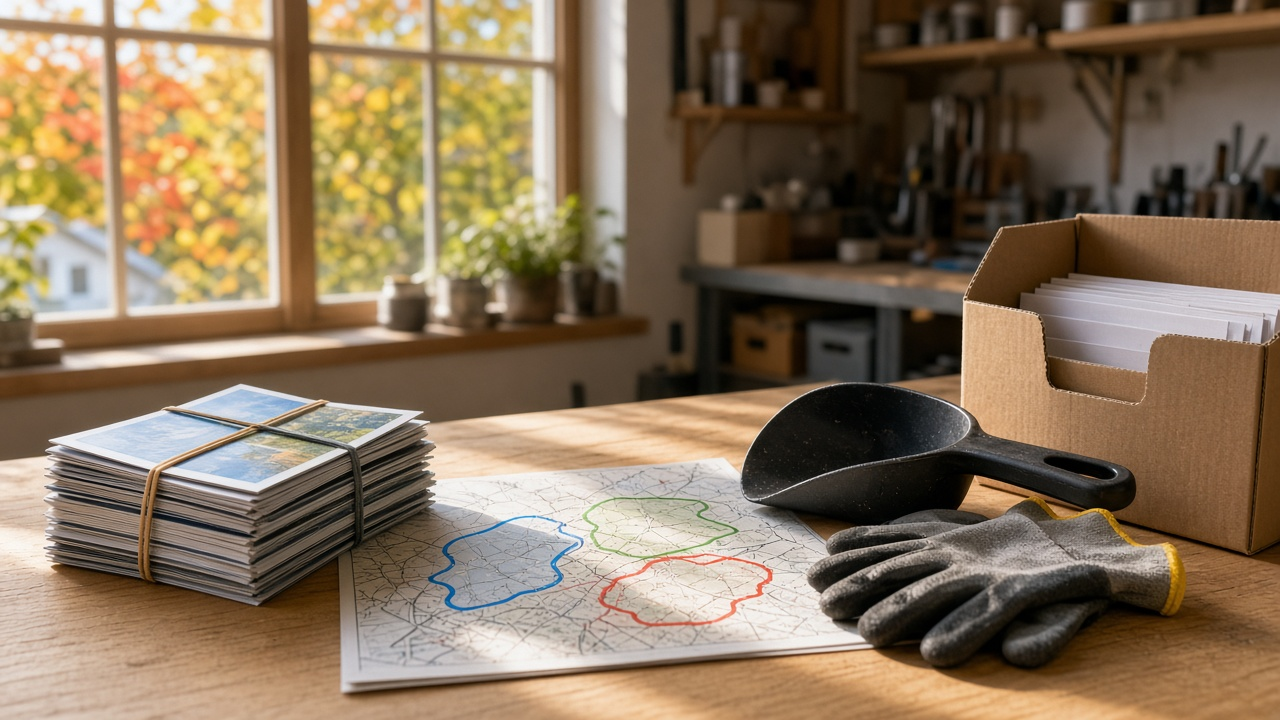
Every Door Direct Mail lets a local business send postcards to every address on chosen postal carrier routes without buying a mailing list. It is simple in principle, but first time mailers run into the same problems: a postcard that is too small to qualify, missing indicia, bundles without facing slips, or a mailing with no way to tell which calls came from it. The USPS Every Door Direct Mail Campaign Planner: Carrier Route Selection, Flat Size Postcard Specs, Indicia, Bundling, and a Trackable Offer for a Local Business prompt plans the whole campaign from route selection to the tracking sheet, using the route data you copy from the USPS mapping tool and the budget you set.
What the prompt produces
- A route selection table that ranks your carrier routes against your ideal customer and fits the total piece count to your budget.
- A mailpiece spec with trim size, paper stock, and bleed that qualifies as a flat, with exact limits marked for you to verify on the current USPS page.
- An address side layout covering the indicia block, the postal customer line, the return address, and the clear zone.
- Front and back copy with one headline, three proof points, the offer and deadline, a call to action, and your tracking element.
- A bundling and drop off checklist with bundle sizes, facing slips, the required form, and timing.
- A response tracking sheet so you can compare routes after the deadline.
How to fill the inputs
BusinessArea names the business, the service area, and the Post Office where you will drop the mail. Retail EDDM mail goes to the office that serves the routes.
TargetHouseholds describes who you want to reach and any areas to skip. For a home service business, that usually means homeowners in neighborhoods with the right kind of housing.
RouteData is copied straight from the EDDM online tool: route IDs, residential and business counts, and any age, income, or household details it shows. The prompt does not invent these numbers, so paste them carefully.
Budget sets the target piece count and spending limit. Leave unknown postage rates as placeholders and fill them in from the current USPS price list.
OfferTracking is your offer, deadline, and how you will count responses. A dedicated phone number, a promo code, or a QR code to a landing page all work.
MailingType says whether you will use Retail EDDM at the counter or the BMEU option with a mailing permit. The indicia and paperwork differ.
Reading the example output
The example plans a fall campaign for a gutter cleaning company:
- Three of four routes are picked. The rental heavy route is skipped, and residential only is chosen so business addresses are left out.
- Spoilage is planned. The print order is slightly larger than the piece count to cover damaged cards.
- The postcard qualifies as a flat. A 6.25 by 11 inch card meets the size rule, with a note to verify limits before sending files to the printer.
- The copy is focused. One question headline, three claims the business can back up, one offer with a deadline, and the same tracking number on both sides.
- The drop off is practical. Bundles of consistent size, a facing slip for each route, the right form, and a reminder to have the clerk confirm route IDs.
- Results are measurable. Cost per booked job by route tells the owner which neighborhoods to mail next season.
Tips for better results
- Pull route data on the same day you plan, since counts can change.
- Use one offer per mailing so responses are easy to attribute.
- Ask your printer for the USPS supplied indicia artwork instead of recreating it.
- Mail the same routes more than once in a season if the first drop performs. Repetition often matters more than a clever headline.
Mistakes to avoid
- Do not print names or street addresses on EDDM pieces. The format is addressed to the postal customer.
- Do not choose a card size from memory. Check the current flat size rules first.
- Do not drop mail without facing slips or with mixed routes in one bundle.
- Do not run a campaign without a tracking method, or you will not know if it worked.
Who it is for
Owners of local service businesses such as landscapers, cleaners, roofers, and dentists, small marketing agencies handling direct mail for clients, and restaurant or retail owners launching a new location.
Related PromptDig links
Start with the USPS Every Door Direct Mail Campaign Planner: Carrier Route Selection, Flat Size Postcard Specs, Indicia, Bundling, and a Trackable Offer for a Local Business prompt and paste your route data from the EDDM tool. To find more prompts for local marketing, Browse more prompts. If you have a campaign planning prompt that worked for your business, Share a prompt.