How to Use the OBS Studio Scene and Audio Track Plan Prompt for a Two-Host Live Podcast
Plan an OBS Studio setup for a live video podcast: scenes and nested sources, a per-mic filter chain, Advanced Audio Properties routing to separate recording tracks, output settings, and a pre-show checklist.
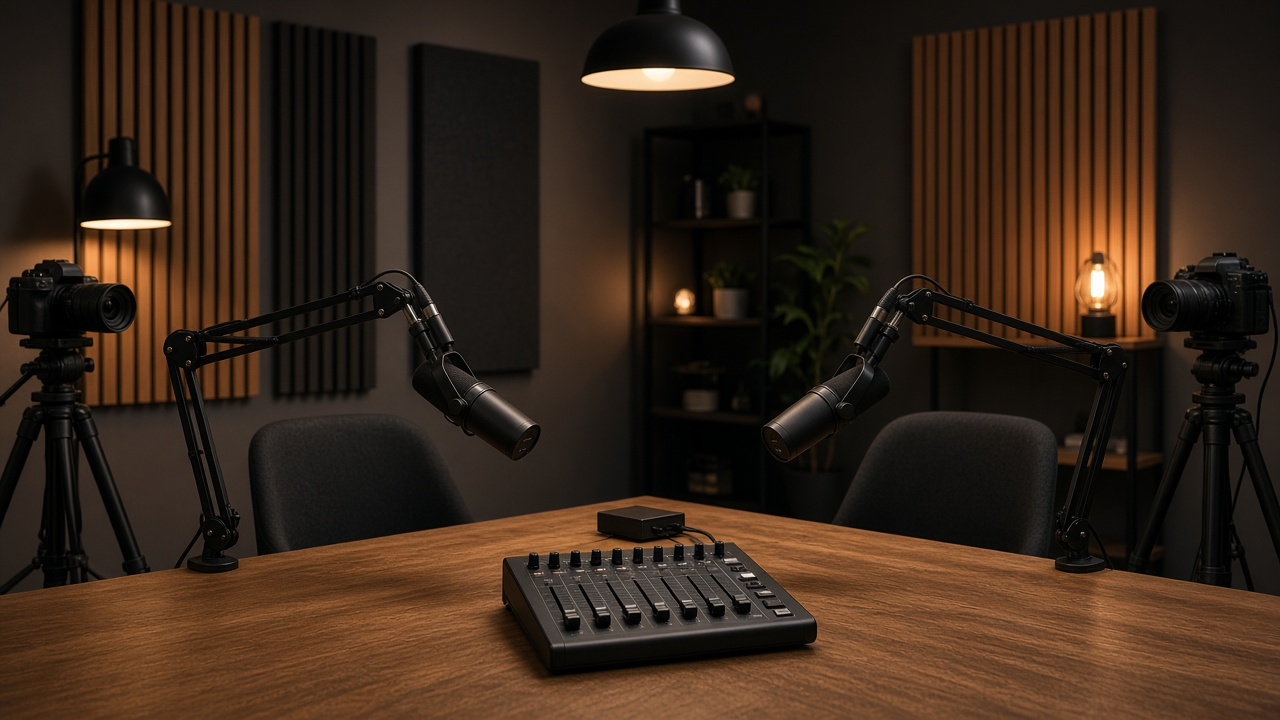
A live video podcast asks OBS Studio to do two jobs at once. It has to produce a clean, well-mixed stream for the audience right now, and it has to record something an editor can fix later. Most setups only do the first job well. The stream sounds fine, but the recording is one mixed track with music baked under every voice, and nobody can remove a cough or rebalance a quiet guest. The OBS Studio Scene Collection and Audio Track Plan for a Two-Host Live Video Podcast prompt plans both jobs from your actual hardware.
Why the plan matters before you build
OBS gives you a lot of freedom, and that freedom is the problem. Scenes get duplicated instead of nested, so changing a name bar means editing six scenes. Audio sources get added wherever they work, so the guest is on one track, the sponsor video is on none, and desktop audio picks up notification sounds mid-show. A written plan makes those decisions once, on paper, before the first episode.
What the prompt produces
- A scene list with the purpose of each scene, its sources from top to bottom, and which shared elements are nested as a scene source. A Lower Thirds scene reused inside every layout means one edit updates the whole show.
- An audio source map with source type (Audio Input Capture, Desktop Audio, Application Audio Capture where the OS supports it, Media Source), the Monitoring setting in Advanced Audio Properties, any Sync Offset, and which of Tracks 1 to 6 each source feeds.
- A mic filter chain for each host using built-in OBS filters in order: Noise Suppression, Noise Gate, Compressor, Limiter, with starting values and how to tune them by ear.
- Output settings in Advanced output mode: a streaming encoder chosen for your GPU, CBR rate control, keyframe interval, and a recording format that survives a crash.
- A hotkey and Studio Mode plan for one operator, including a panic scene.
- A pre-show checklist short enough to run every episode.
How to fill the inputs
Be literal in Hardware. List each mic, the audio interface and its input count, each camera and how it connects. The prompt is told not to invent features your gear does not have, so vague hardware gives you vague advice. Machine should include the OS, GPU, and OBS version, because encoder choices and some audio capture options depend on them.
In Destination, name the platform and resolution. The prompt will not make up a bitrate; if you do not supply one, it tells you where to check the platform's recommended settings. GuestMethod matters for audio routing, since a VDO.Ninja browser source, a Discord window, and a Zoom window each bring audio in differently. PostNeeds is where you ask for isolated host tracks, a music-free track, or vertical clips.
Walking through the example
The sample show has two in-studio hosts on dynamic mics into a two-input USB interface, a mirrorless camera on a capture card, a webcam for the second host, a remote guest through VDO.Ninja, and a sponsor read with a short video. The machine is a Windows desktop with an NVIDIA card.
The track layout is the part most people should copy. Track 1 is the full stream mix. Tracks 2 and 3 carry each host alone, Track 4 the guest, Track 5 the sponsor audio. The music bed feeds only Track 1. That gives the editor isolated voices and a mix without music, without any extra software.
Other details worth noting:
- The guest browser source has Control audio via OBS checked, so it appears in the mixer and can be routed to its own track.
- Recording uses MKV with Automatically remux to MP4 enabled, so a crash does not destroy the file.
- Vertical clips are cropped from the 1080p recording later instead of adding a second canvas during the live show.
- Studio Mode stages the next scene in Preview, and a hotkey jumps straight to a hold card with mics muted if something goes wrong.
Mistakes to avoid
- Monitoring the host mics. With Monitor and Output on a local mic, hosts hear themselves with delay. Leave local mics on Monitor Off.
- Recording only Track 1. If the recording tracks are not checked in Output settings, the isolated tracks exist in the mixer but never reach the file.
- Skipping the sync check. Capture cards often lag the mics slightly. A hand clap test with Sync Offset on the mics fixes it in a minute.
- Starting the stream before the recording. Start Recording first, so the opening is never lost.
Who it is for
This prompt is for podcasters moving from audio-only to live video, small production teams with one operator, and anyone who has inherited an OBS scene collection nobody can explain. It works best when you paste the real gear list and treat the output as a build sheet to check against your own setup.
Related PromptDig links
- Prompt: OBS Studio Scene Collection and Audio Track Plan for a Two-Host Live Video Podcast
- More creative production prompts: Browse more prompts
- Built a better streaming setup prompt? Share a prompt