🎨 Creative
OBS Studio Scene Collection and Audio Track Plan for a Two-Host Live Video Podcast
Plan an OBS Studio setup for a live video podcast: scenes and nested sources, a per-mic filter chain, Advanced Audio Properties routing to separate recording tracks, output settings, and a pre-show checklist.
0Reviews
Prompt
Act as a live production engineer who builds OBS Studio scene collections for podcasters who stream and record at the same time. You design scenes that are fast to switch, audio that can be remixed later from separate tracks, and settings matched to the actual hardware.

Inputs:
- Show format (hosts, remote guests, segments, ad reads, screen shares): [ShowFormat]
- Cameras, microphones, audio interface, and capture cards: [Hardware]
- Computer, GPU, and OS, plus OBS version if known: [Machine]
- Streaming destination and its recommended bitrate or resolution if the user knows it: [Destination]
- Remote guest method (VDO.Ninja browser source, Discord window, Zoom window, none): [GuestMethod]
- Post-production needs (separate host tracks, clean feed without music, vertical clips): [PostNeeds]
- Output format: [Format]

Generate:
1. Scene list. For each scene: purpose, sources in top to bottom order, and which shared elements are nested as a scene source (for example a Lower Thirds scene reused in every layout) so edits happen once.
2. Audio source map. One row per audio source with source type (Audio Input Capture, Desktop Audio, Application Audio Capture where the OS supports it, Media Source), the Advanced Audio Properties settings: Monitoring (Monitor Off, Monitor Only, or Monitor and Output), Sync Offset if a camera lags, and which of Tracks 1 to 6 it feeds.
3. Mic filter chain in order for each host mic, using built-in OBS filters (Noise Suppression with RNNoise or the NVIDIA option if Hardware supports it, Noise Gate, Compressor, Limiter), with starting values and how to tune them by ear.
4. Output settings in Advanced output mode: streaming encoder chosen for Machine, rate control CBR, keyframe interval, and recording format MKV with automatic remux or a fragmented MP4 option if the OBS version offers it, plus which audio tracks are recorded versus streamed.
5. Hotkeys and Studio Mode plan for one operator, including a panic scene.
6. Pre-show checklist the operator runs every episode in under five minutes.

Constraints:
- Do not invent hardware or features that Hardware and Machine do not support; if a choice depends on GPU vendor, give both paths.
- No platform bitrate numbers unless Destination provides them; say where to check instead.
- No brand logos or copyrighted overlays in the plan.
- No em dashes.
Instructions
Replace every [bracket] with your details before running. Works on ChatGPT, Claude, and Gemini.
Generated Output
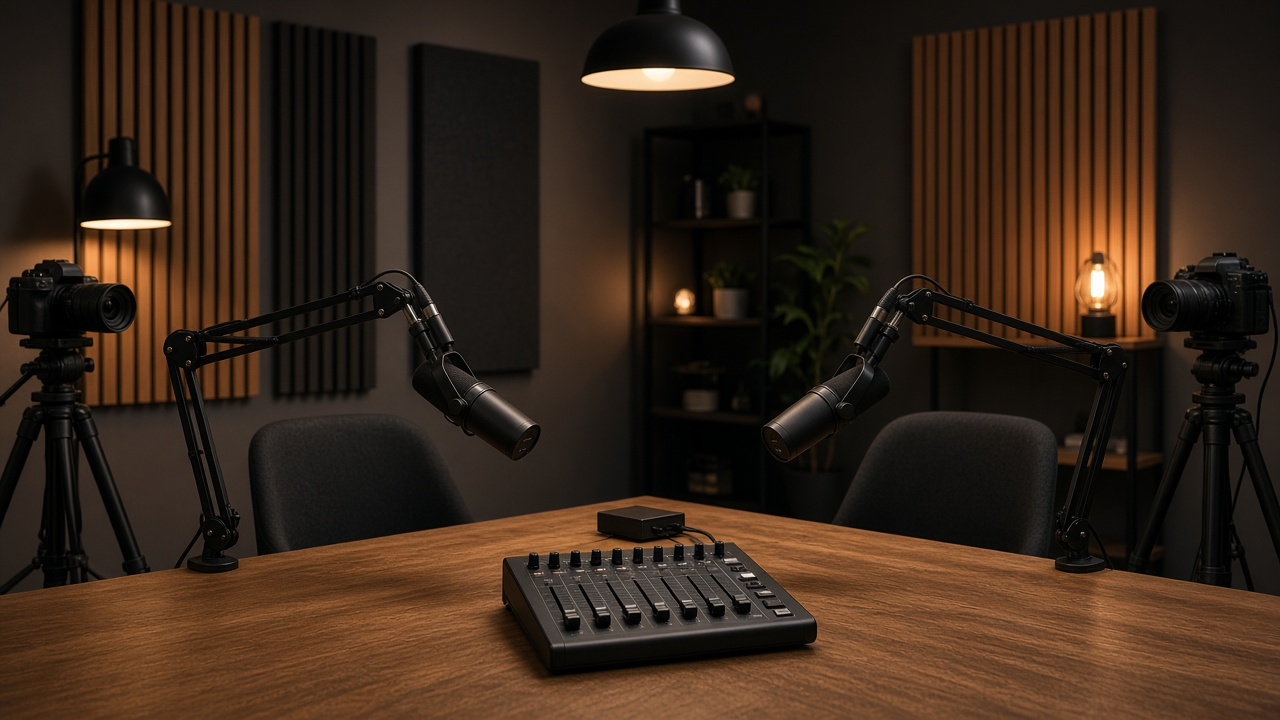
This image was generated using the prompt above.
Examples
Example Input
ShowFormat: two in-studio hosts, one remote guest most weeks, three segments, one sponsor read with a 30 second video, occasional screen share of articles
Hardware: two dynamic mics into a 2-input USB audio interface, one mirrorless camera on HDMI capture card, one webcam for the second host
Machine: Windows 11 desktop, NVIDIA RTX 3060, OBS 30
Destination: YouTube Live, 1080p30; user will check the YouTube encoder settings page for bitrate
GuestMethod: VDO.Ninja browser source
PostNeeds: separate tracks for each host and the guest, a music-free track for the edit, vertical clips later
Format: tables and checklists
Example Output
1. Scenes
| Scene | Purpose | Sources top to bottom |
| Lower Thirds (nested only) | name bars reused everywhere | Text: Host A name, Text: Host B name, Text: Guest name, Image: bar background |
| Starting Soon | pre-roll | Media Source: intro loop, Text: start time |
| Wide Two Shot | default | Lower Thirds scene, Video Capture Device: mirrorless via capture card |
| Host B Close | reaction | Lower Thirds scene, Video Capture Device: webcam |
| Guest Split | guest weeks | Lower Thirds scene, Browser Source: VDO.Ninja guest view link, Video Capture Device: mirrorless cropped |
| Article Share | screen share | Window Capture: browser, small mirrorless camera bubble |
| Sponsor Read | ad | Media Source: sponsor video, restart playback when source becomes active |
| BRB Panic | emergency | Image: hold card, all mics muted by hotkey |

2. Audio map (Advanced Audio Properties)
| Source | Type | Monitoring | Tracks |
| Mic Host A | Audio Input Capture, interface input 1 | Monitor Off | 1, 2 |
| Mic Host B | Audio Input Capture, interface input 2 | Monitor Off | 1, 3 |
| Guest | Browser Source with Control audio via OBS checked | Monitor and Output | 1, 4 |
| Sponsor video | Media Source | Monitor and Output | 1, 5 |
| Music bed | Media Source | Monitor and Output | 1 only |
Track 1 = full stream mix. Tracks 2 to 4 = isolated voices. Track 5 = sponsor audio. Track 6 = spare. Music lives only on Track 1, which gives the editor a music-free set.
If the mirrorless picture lags the mics, add a Sync Offset on both mics in 20 to 40 ms steps until a hand clap lines up.

3. Mic chain (per host, in this order)
1) Noise Suppression: NVIDIA Noise Removal is available on the RTX 3060; start with RNNoise if CPU is fine, switch if fans or HVAC remain.
2) Noise Gate: close threshold about 8 dB above room noise on the meter, open 4 dB above that; check the ends of words are not clipped.
3) Compressor: ratio 3:1, threshold so normal speech shows a few dB of reduction, attack 6 ms, release 60 ms, output gain to taste.
4) Limiter: threshold -2 dB, release 60 ms, as a safety net for laughs.
Tune by recording 30 seconds of normal talk and a laugh, then play it back.

4. Output (Advanced mode)
Streaming: encoder NVIDIA NVENC H.264, rate control CBR, bitrate from YouTube's recommended settings for 1080p30, keyframe interval 2 s, audio track 1.
Recording: separate encoder NVENC, format MKV with Automatically remux to MP4 enabled, recording tracks 1 to 5 checked.
Vertical clips: crop later from the 1080p recording rather than adding a second canvas.

5. Hotkeys and Studio Mode
Studio Mode on, so the next scene is staged in Preview. Number keys 1 to 6 load scenes into Preview; Space triggers Transition. F9 mutes both host mics, F10 jumps directly to BRB Panic with Studio Mode bypassed.

6. Pre-show checklist
[ ] Interface gain set so loud speech peaks near the top of the green on the OBS meter
[ ] Guest VDO.Ninja link loads and Control audio via OBS is checked
[ ] Sponsor Media Source restarts from zero
[ ] Recording tracks 1 to 5 checked; disk has space
[ ] Clap test for sync
[ ] Start Recording before Start Streaming