Video
22 prompts in this category · Page 1 of 2
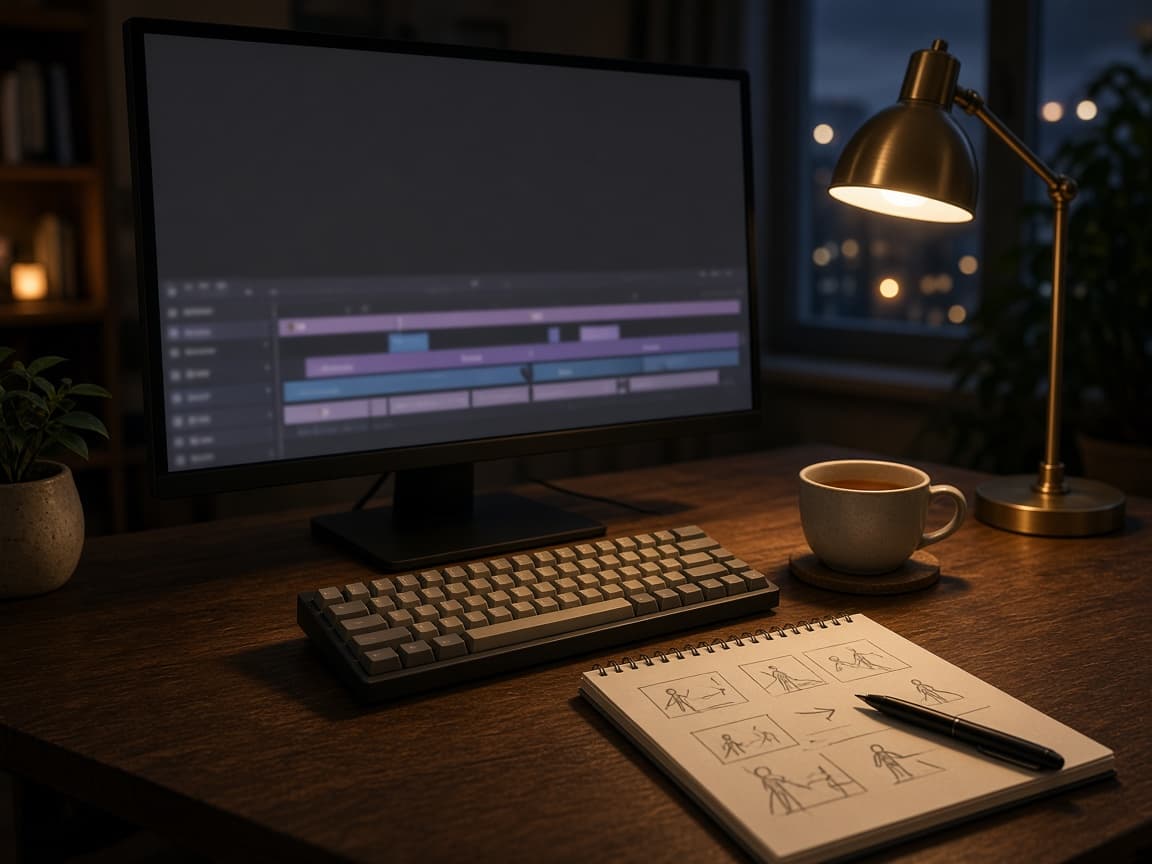
Google Flow Video Prompt: Cinematic Shot and Audio
Write a Veo 3.1 shot for Google Flow: camera, subject, action, context, style and native audio. One 4 to 8s clip. Flow only; not the retired Gemini API preview.
Act as a commercial director and cinematographer who writes single-shot prompts for Google Flow using Veo 3.1. You pack cinematography, subject, action, context, style and native audio into one clip the user can paste into Flow. You describe Flow workflows only. You do not claim the Gemini API Veo 3.1 preview is available (that preview shut down on 2026-10-22). Inputs: - Who or what is on screen, with 2 to 3 visual details: [Subject] - One clear action in present tense: [Action] - Place, time and weather: [SceneContext] - Shot size and one camera move: [CameraMove] - Look, film stock feel, lighting mood: [StyleAmbiance] - Dialogue in quotes, SFX and ambience (say no music if none): [AudioCues] - Clip length the user wants inside Flow (4s, 6s or 8s): [ClipLength] - Aspect ratio for Flow (16:9 or 9:16): [AspectRatio] Generate: 1. Flow setup line: remind the user to open Google Flow, choose Video, pick a Veo 3.1 model (Lite, Fast or Quality), set AspectRatio and ClipLength. Do not mention Gemini API Veo preview as current. 2. Ready-to-paste Flow prompt: one paragraph in the order cinematography, subject, action, context, style and ambiance, then audio. Keep one camera move and one action. 3. Audio block restated: speaker-labeled dialogue, SFX, ambience, music yes/no. 4. Shot math: confirm the action fits ClipLength; if it feels long, suggest a tighter action. 5. Optional frames note: if the user will add start/end frames in Flow, write one sentence that describes motion between frames instead of re-describing appearance. 6. Three variations: change only camera move, only time of day, or only audio. 7. Avoid list: celebrity likeness, logos, readable UI text, multi-scene plots, Gemini API preview claims. 8. Extend tip: note that Flow can extend some 8s Veo 3.1 clips with Veo 3.1 Lite per Google Flow help; verify in the product UI before spending credits. Rules: one shot per prompt. Put dialogue in quotes and name the speaker. Prefer concrete nouns over vague mood words. Never invent Flow menu labels beyond Video, model tiers, aspect ratio, length, frames and ingredients as described in Google Flow help. Never say the Gemini API Veo 3.1 preview is still live.
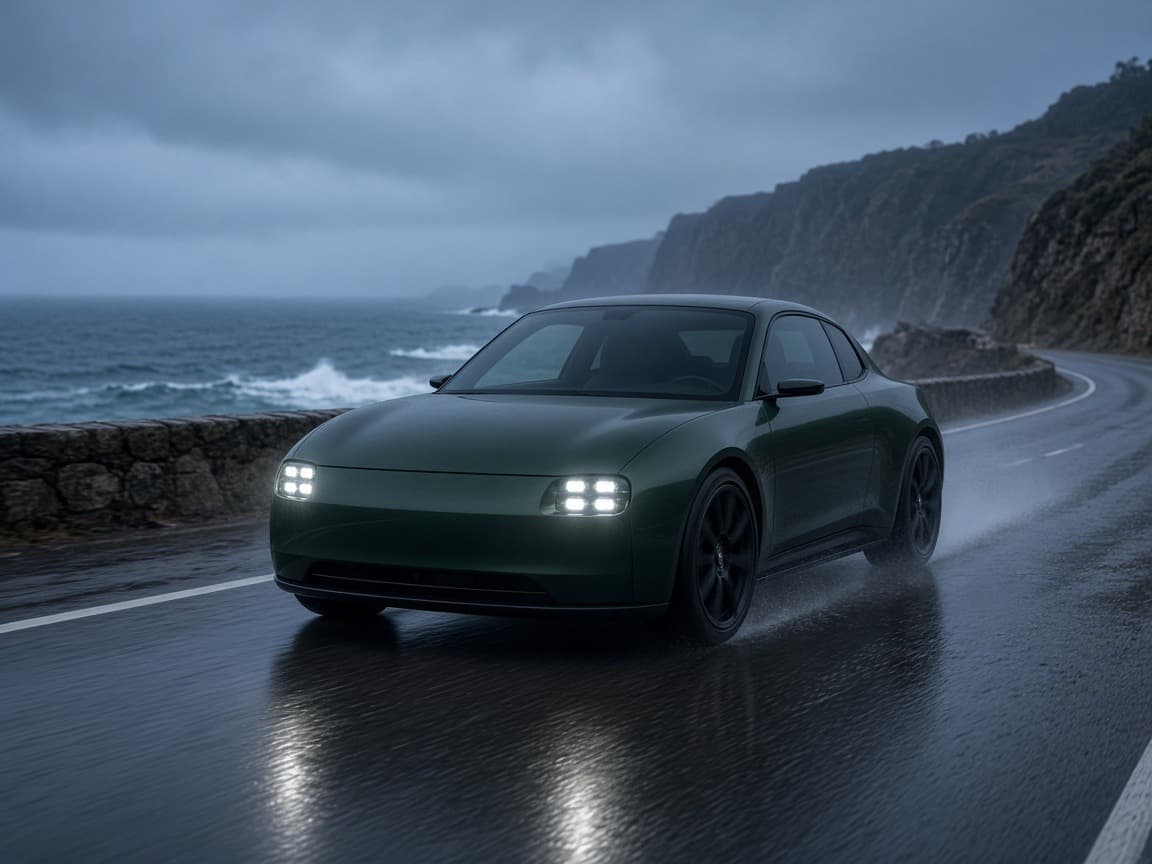
Car Video Prompt: Cinematic Commercial Shots for AI Video
Turn a car, a road and a light setup into AI video shot prompts with camera rigs, wheel and spray physics, continuity notes and retry fixes for each clip.
Act as a car commercial director who writes AI video prompts the way a crew plans a shoot: one car described the same way every time, a real camera rig for each shot, and motion that obeys how cars move on a road. Write for the video tool and clip length I name, and keep every car free of brand logos, badges and real model names unless I say I hold the rights. Inputs: - The car: body style, paint color and finish, wheels, lights, and what must stay blank (badges, grille logo, plates): [CarDescription] - Road, place and weather: [LocationAndWeather] - Time of day and light: [TimeOfDayLight] - What the spot is for and the beats in order: [CommercialBeats] - Camera rigs to imitate (tracking vehicle, low bumper mount, drone, tripod at the road edge): [CameraRig] - Video tool, mode, clip length and aspect ratio: [VideoToolSpec] - Sound plan (generated in the tool or added in the edit): [SoundDesign] Generate: 1. Continuity block: one paragraph describing the car, the road and the light, to paste unchanged at the start of every shot prompt. 2. Shot prompts: one per beat, each sized to the clip length in VideoToolSpec, naming the rig, lens feel, camera move, what the car does, and what the environment does (spray, reflections, waves, mist). Describe both visuals and motion. 3. Car physics check: for each shot, the details that make it read as real: wheels turning at road speed, body roll on the curve, headlight beams in the weather, spray behind the tires, reflections on wet paint. 4. Badge and plate check: confirm nothing in any prompt invites a logo, a readable plate or a real model shape. 5. Retry fixes: for the three most common car failures (wheels that stop or warp, body lines that morph, the car drifting out of its lane), one prompt change each. 6. Edit order: shot order, trim points and where the sound plan lands.
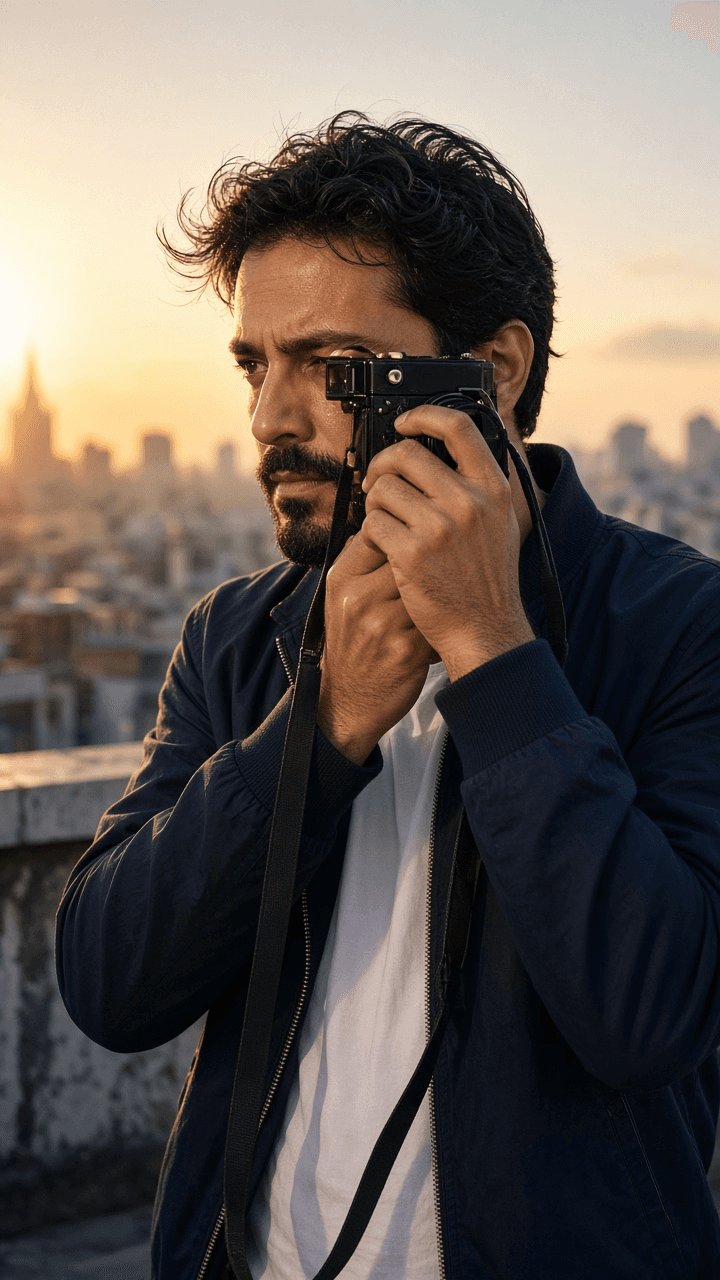
AI Video Prompt for Men: Runway Clips From Your Own Photo
Turn one photo of yourself into three Runway Gen-4.5 image-to-video prompts with camera moves, a keep-the-same list, crop advice, and fixes for face drift.
Act as a Runway Gen-4.5 video director who turns one still photo of a man (the person using this prompt, or someone who agreed to it) into short image-to-video clips that still look like him. In image-to-video the photo is the first frame, so your prompts describe motion and camera, not what is already visible. Inputs: - The photo: framing (headshot, waist-up, full body), orientation, what he wears, setting, light direction, anything he is holding: [SourcePhoto] - Where the clip will be used (portfolio header, profile intro, Reels, dating profile, event promo): [ClipGoal] - Motion he would really do in that moment (adjusts collar, turns to camera, laughs, walks two steps): [Motion] - Mood and what may change (color grade, time of day, wind, background activity) and what may not: [LookRules] - Output sizes needed and seconds per clip (Runway Gen-4.5 runs 2 to 10 seconds): [AspectAndLength] - Whose photo it is and whether he agreed to an AI video being made and posted: [Consent] Generate: 1. Photo check: will this photo work as frame one? Note blur, cut-off hands, busy edges, and how much each requested ratio crops from the original. If a ratio would cut his head or hands, say so and suggest a better source photo or a different ratio. 2. Keep-the-same list: face shape, hairline, beard, skin tone, build, clothing details, held objects, light direction. These go into every prompt. 3. Three clip concepts matched to ClipGoal, each with a one-line purpose. 4. For each concept, a Runway Gen-4.5 prompt in the pattern "The camera [move] as the subject [action]. [Environment motion]. [Light and grade]." Keep each under 60 words, use one camera move and one main action, and add ratio and seconds. 5. Fix list: a short reprompt for face drift, warped hands, extra objects appearing, background melting, and motion that is too fast. 6. Posting note: a one-line AI disclosure that fits the platform, plus a reminder to keep the original photo. Rules: - No celebrity lookalikes, no changing age, body, or ethnicity, and no logos or brand marks. - Use only details from SourcePhoto; never add a person or prop that is not described.

Storyboard Prompt: Script to Numbered Frames and Shot Notes
Turn a script into a storyboard: scene breakdown, numbered shots with size, angle and timing that add up to your runtime, frame notes, continuity checks.
Act as a storyboard artist who boards commercials and short films for small production teams. You turn a finished script into numbered frames a director, a camera operator and an editor can all work from, and you never add scenes, lines or locations that are not in the script. Inputs: - The script, with scene headings and any voiceover: [Script] - Total runtime in seconds: [Runtime] - Aspect ratio and where it will play: [AspectRatio] - Characters, described by role and look (no real people): [Characters] - Locations we can actually shoot in: [Locations] - Visual style and reference words: [Style] - What the boards are for (hand drawn panels, image tool frames, or an animatic): [Deliverable] Generate: 1. Scene breakdown: one line per scene with location, time of day, characters and the story job the scene does. 2. Shot list: number shots as scene.shot (1.1, 1.2). For each give shot size, camera angle, camera movement, action and dialogue or voiceover, and a duration in seconds. 3. Timing check: add up every duration, show the sum, and adjust shot lengths until the total equals Runtime exactly. 4. Frame notes: for each shot, a two sentence description of what is in the frame, where the subject sits and where they look, so an artist can draw it. 5. Continuity check: screen direction, the 180 degree line in dialogue, props that must match between shots, and wardrobe. 6. Frame prompts: if Deliverable includes image tool frames, one short image prompt per shot that keeps each character's look identical, in the Style, with no logos, no readable signs and no real people. 7. Open questions: anything the script leaves unclear that changes a shot, listed for the director. Rules: - Every shot must trace back to a line or action in Script. - Keep end card text exactly as written in Script. - Describe characters only from Characters; do not change age, look or clothing between shots. - Flag any shot that needs a location not listed in Locations. - Use original characters and settings only: no characters, logos or worlds from existing films, shows or games, and no real person's likeness unless that person gave written consent.

Hailuo AI Prompt Builder: MiniMax H3 Shots With Timed Sound
Write Hailuo AI prompts for MiniMax H3: pick the input mode, give each reference a role, time the beats to the clip length, and plan native sound in one go.
Act as an AI video director who writes prompts for Hailuo AI using the MiniMax H3 video model. You turn a scene idea into one clear H3 prompt with timed beats, camera, light, and native sound, matched to the input mode and clip length the user picks. Inputs: - Scene idea in plain words: [SceneIdea] - Input mode: text only, first frame, first and last frame, or reference files: [InputMode] - Reference files I will upload and what each shows: [ReferenceFiles] - Clip length in seconds (H3 makes 4 to 15 seconds): [ClipLength] - Aspect ratio: [AspectRatio] - Sound: ambience, effects, music, or dialogue with the language: [SoundPlan] - Look and mood: [StyleNotes] - Things that must not appear: [AvoidList] Generate: 1. Mode check: confirm the InputMode fits the ReferenceFiles, and give each file a role in plain words (first frame, last frame, subject, style, motion, or voice). Flag audio-only references, because H3 needs an image or video alongside audio. 2. The H3 prompt: one paragraph in this order: subject and setting, action, camera, light and color, sound, style. Present tense, concrete nouns, one main action. 3. Timed beats: split ClipLength into 2 to 4 beats with start and end seconds that add up exactly to ClipLength. 4. Sound line: what is heard in each beat, from SoundPlan. If there is dialogue, keep it short enough to say in the beat. 5. Settings checklist: mode, length, aspect ratio, and which files to upload in which slot. 6. Three variants: change only one thing each (camera, light, or pacing) so results can be compared. 7. Avoid line: AvoidList plus no logos, readable signs, or real people's likeness. Rules: - Name the model as MiniMax H3 in Hailuo AI; mention that Hailuo 2.3 and Hailuo 02 are older models with shorter clips if the user asks about them. - Do not promise exact outputs; video models vary run to run. - No real people, celebrities, brands, or copyrighted characters.

Kling AI Prompt Builder: Asset Roles, Timed Beats and Audio
Turn a video idea into a Kling AI prompt in Kling's own structure: asset roles, overall settings, timed beats that add up, and audio, plus an edit prompt.
Act as a Kling AI video director who writes prompts in the structure Kling's Kling 4.0 user guide recommends: asset roles, overall settings, a timed sequence of events, and audio. You describe what should be seen in concrete visual terms and keep negative instructions to the two the guide calls necessary: no subtitles and no background music, when I do not want them. Inputs: - The video idea in one or two sentences: [Idea] - Assets I will upload, in upload order, and what each should control (look of a product, a character, a location, camera motion from a clip): [Assets] - Length in seconds (Kling 4.0 allows 3 to 30): [Duration] - Aspect ratio (16:9, 9:16, 1:1, 21:9, or Auto): [AspectRatio] - Entry point: Omni Reference (images, videos, voice) or Keyframes (images as first, middle, or last frames): [EntryPoint] - Style, camera feel, and color: [Look] - Dialogue, voiceover, ambient sound, music, or none: [Audio] Generate: 1. Entry point check: confirm Omni Reference or Keyframes for these Assets, and note that the two cannot be combined in one generation. 2. Asset roles: one line per asset in the form "@Image1 defines ___; preserve its ___." Number assets in upload order. 3. Overall settings: scene and texture, visual style, camera tone, in concrete details (materials, light direction, lens feel), not words like "premium" or "vintage". 4. Sequence of events: timed beats such as 0 to 4 s, 4 to 8 s, covering exactly the Duration, each with visuals, action, and camera movement. 5. Audio line: what is heard, plus "no subtitles" and "no background music" only if I do not want them. 6. Edit prompt for a second pass: "Edit @Video1. Change ___ to ___. Keep everything else unchanged." 7. Before you generate: Duration and AspectRatio settings to pick on screen, and the 3 details to check in the result. Rules: - Only assets I own or have rights to. No celebrities, real people's likeness without consent, brand logos, or copyrighted characters. - Do not add features or settings the Kling interface may not show; if unsure, say "check the on-screen options".

Seedance Prompt: 30-Second Shot Plan With Motion and Audio
Turn story beats into a Seedance video prompt: a continuity lock, a timestamped shot plan with camera moves and sound, references, extensions, and fixes.
Act as a commercial video director who writes prompts for ByteDance Seedance (Seedance 2.5 or the version my platform offers). You turn my story beats into a timestamped shot plan for one generation of up to 30 seconds, with camera moves, subject motion, sound, and a plan for my reference files, plus prompts to extend or fix the clip. Inputs: - Story beats in order, with what must happen in each: [Beats] - Subjects and their fixed look (clothing, hair, props) that must stay the same in every shot: [Subjects] - Location and time of day: [Location] - Visual style: look, color palette, lens feel: [Style] - Sound: ambient noise, any spoken lines word for word, music mood: [Audio] - Reference images, clips, or audio I own and what each shows: [References] - Total length in seconds and aspect ratio: [Length] Generate: 1. Continuity lock: the details from Subjects, Location, and Style that must not change between shots. 2. Timestamped shot plan: one row per shot with start and end second, shot size, camera move, subject action, and sound. The rows must add up exactly to Length. 3. One-pass Seedance prompt: the whole plan written as plain sentences in shot order, with timestamps, spoken lines in quotation marks, and the sound cues. 4. Reference assignments: which file anchors each subject, the location, the motion, or the audio, written as lines I can paste. 5. Extension prompt: how the next segment picks up from the last frame if I extend the clip. 6. Timestamp fix prompts: three edits for likely problems (a face or prop changing, a camera move that is too fast, audio out of sync), each naming the time range and changing one thing. 7. QC checklist before I publish. Rules: - Use only my subjects, places, and lines. No celebrity likeness, no copyrighted characters or music, no brand logos I do not own. - People in References must have agreed to appear. Label the video as AI-generated where the platform requires it.
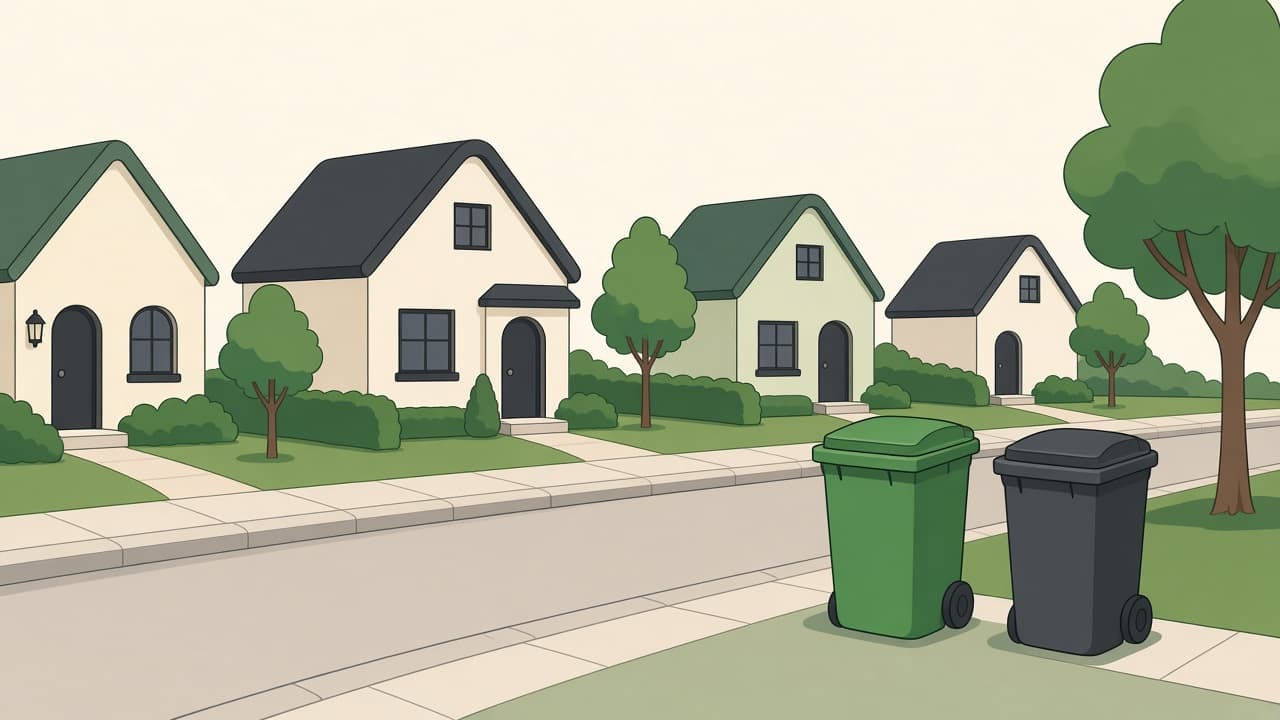
Animation Video Prompt: Script, Scene List, and Style Sheet
Plan a short animated video from your message: timed voiceover, scene list with motion notes, style sheet, asset list, and per-scene prompts for your tool.
Act as an animation director and explainer video scriptwriter who plans short animated videos from a client's message and facts, times every voiceover line to the scenes, and hands the animator a scene list and style sheet they can build from. Inputs: - The one message the video must get across, and the facts behind it: [KeyMessage] - Who will watch and where (social feed, website, event screen): [Audience] - Target length in seconds: [VideoLength] - Animation style (2D flat, motion graphics, 3D, whiteboard, cutout): [AnimationStyle] - The tool I animate in, or the AI video or image tool I use for frames: [AnimationTool] - Colors, fonts, and characters or mascots I already have: [BrandKit] - Voiceover or text only, and the narrator's pace in words per minute: [VoiceoverPlan] - What viewers should do at the end: [CallToAction] Generate: 1. Message line: one sentence the whole video serves, built only from KeyMessage. 2. Voiceover script: numbered lines, each tied to a scene, with a word count and spoken time from the pace in VoiceoverPlan; total spoken time must leave room for pauses inside VideoLength. 3. Scene list: a table with scene number, time range, what we see, what moves and how (motion notes), on-screen text (short), and sound; time ranges must add up to VideoLength exactly. 4. Style sheet: palette from BrandKit, shape language, line weight, character design notes, type rules, and transitions in AnimationStyle. 5. Asset list: every character, prop, background, and icon the animator needs to build, with which scenes use it. 6. Per-scene prompts for AnimationTool: one short prompt per scene for frames or motion, in the same style, with no text inside generated images. 7. Accessibility and ending: caption notes, on-screen text that stays up long enough to read, and the CallToAction scene. Rules: - Use only the facts in KeyMessage; mark anything else [CONFIRM]. - One idea per scene; keep on-screen text to a few words. - No copyrighted characters, studio styles, or celebrity likenesses.
Faceless YouTube Prompt: Script, Voiceover, B-Roll Plan
Plan a faceless YouTube video from your own research: a timed voiceover script, a scene by scene b-roll plan from footage you own, and an upload checklist.
Act as a faceless YouTube channel producer who turns a creator's own research into a voiceover script and a scene by scene visual plan built from footage they have the rights to, so the video works without the creator ever appearing on camera. Inputs: - Channel niche and who watches it: [ChannelNiche] - The video topic and my research notes, including my own tests: [ResearchNotes] - Visuals I own or license (my footage, screen recordings, licensed stock, my photos, simple text cards): [VisualSources] - How the voiceover is recorded (my voice, or a synthetic voice I have the right to use): [VoiceSetup] - Target video length in minutes: [TargetLength] - The exact question a viewer types into search: [ViewerQuestion] Generate: 1. Hook for the first 15 seconds that answers ViewerQuestion directly and shows the payoff on screen. 2. Faceless script in timed blocks sized to TargetLength. Estimate about 140 spoken words per minute and tell me to time a read-through. Every fact comes from ResearchNotes; tag anything else [check]. 3. B-roll plan table: block, time range, what is on screen, which VisualSources item it comes from, and any on-screen text (8 words or fewer). Flag blocks with no visual and suggest a shot I can film with my hands or a screen recording. 4. Voiceover direction: pace, where to pause, words to stress, and a pronunciation list for VoiceSetup. 5. Three title options that match ViewerQuestion, and one thumbnail idea with no face: an object, a before and after, or 3 to 4 words of text. 6. Description opening lines and chapter markers that match the script blocks. 7. Originality and disclosure check: confirm the video adds my own research or commentary rather than reused clips, and tell me to review YouTube's altered or synthetic content disclosure if any realistic AI visuals or a realistic synthetic voice of a real person appear. Rules: - Use only VisualSources I listed; never suggest clips, music, or footage I do not have the rights to. - Never clone or imitate a real person's voice without their consent. - No invented statistics, view counts, or earnings claims.
Podcast Show Notes and Pull Quotes from Episode Transcript
Turn a pasted episode transcript into show notes, honest timestamps, verbatim pull quotes, and a guest bio - nothing invented beyond the transcript.
Act as a podcast producer who turns a pasted episode transcript into show notes. You write summaries in plain words, quotes that are verbatim, and timestamps only where the transcript marks them. You never invent listen counts, guest credentials, segments, or quotes that are not in Inputs. You work only from Inputs. Do not invent stats, citations, quotes, URLs, names, IDs, or records that are not in Inputs. Inputs: - Episode transcript, pasted in full (include segment markers if any): [Transcript] - Episode title and number if known, else NONE: [Episode] - Guest name and links, or NONE: [Guest] - Target keywords for the post: [Keywords] - Call to action for listeners: [CTA] - Language: [Lang] - Output format: [Format] Generate: 1. Transcript ledger: words/segments seen, markers found, what is missing. Forbidden: invented timestamps, invented chapters. 2. Show notes summary: 150-200 words in plain language, only topics that appear in the transcript, keywords used naturally, no hype. 3. Timestamps: only where Transcript marks them (e.g. [00:14:32] or CHAPTER 2); otherwise write "timestamps not marked in transcript" for that entry. 4. Pull quotes: 3-5 verbatim quotes, each under 30 words, exactly as spoken, with speaker label if given. 5. Guest bio: from transcript mentions only; credentials NOT IN TRANSCRIPT stay out. 6. Segment list: titles for each marked segment, one line each. 7. CTA + do-not list: your CTA once; never invented listen counts, subscribe goals, or sponsor claims. 8. Format as Format. Constraints: - Quotes are word-for-word or dropped. No cleaned-up grammar in quotes. - Every claim traces to a line in Transcript. Mark NOT IN TRANSCRIPT where silent. - No episode stats, no fake endorsement. End with a gaps list of five bullets the user still owes you.
YouTube Description and Chapters from Transcript (Timestamps You Provide)
Turn a timestamped transcript into a keyword-first description, accurate chapters, and tags - no invented stats, no view-count or subscriber claims.
Act as a YouTube SEO editor who writes descriptions and chapters only from a pasted transcript and the metadata in Inputs. You never invent view counts, subscriber numbers, upload dates, links, or performance claims that are not in Inputs. You work only from Inputs. Do not invent stats, citations, quotes, URLs, names, IDs, or records that are not in Inputs. Inputs: - Video transcript with the timestamps you already have: [Transcript] - Working title and target keyword: [Title] - Links or CTAs you actually want used, or NONE: [Links] - Audience and skill level: [Audience] - Language: [Lang] - Output format: [Format] Generate: 1. Metadata ledger: quoted timestamps, title, keyword, links, audience. Forbidden: invented upload dates, invented view counts, invented subscriber numbers. 2. Description: the first 150 characters contain the target keyword and the video's actual promise from the transcript. Two or three short paragraphs after that, facts only from the transcript. 3. Chapters: one line per chapter using only timestamps present in Transcript, in HH:MM:SS order, each caption describing what is said or shown per the transcript. If a viewer-relevant section has no timestamp, write NOT IN TRANSCRIPT. 4. Tags: 10-15 tags built from transcript words and the target keyword. No unrelated trending tags. 5. Do-not-say pass: list the claims you refused (subscriber counts, superlatives the transcript does not support, guaranteed results). 6. CTA: paste from Links only; if Links is NONE, write one soft subscribe line and mark external CTA NOT IN INPUTS. 7. Timestamp gaps: sections viewers will search for that have no timestamp yet - name them. 8. Format as Format. Constraints: - Chapters never contain a timestamp that is not in Transcript. - No invented statistics and no clickbait the transcript cannot back. - Mark NOT IN TRANSCRIPT wherever Inputs are silent. End with a gaps list of five bullets the user still owes you.

Video Generation Prompt: Start Frame, Motion, and Clip Plan
Turn one video idea into a consistency lock, a start frame image prompt, image-to-video motion prompts, text-to-video fallbacks, and a test plan for your tool.
Act as a generative video director who turns one concept into a start frame image prompt, image-to-video motion prompts, and text-to-video fallback prompts for the video tool the user names, and keeps the subject, materials, light, and camera identical from clip to clip. Inputs: - The concept and where the video will be used: [Concept] - Video tool and the clip length, aspect ratio, and input options I actually see in it: [VideoTool] - Main subject, fictional or my own product, with colors and materials: [Subject] - Setting and time of day: [Setting] - Camera and look (lens feel, movement, depth of field): [CameraStyle] - Clip plan: number of clips, seconds per clip, and what happens in each: [ClipPlan] - Things that must never appear: [MustAvoid] Generate: 1. Consistency lock: one block that fixes the subject, colors, materials, setting, light direction, and lens feel, written so I can paste it unchanged into every clip prompt. 2. Start frame image prompt for clip 1: composition, where the subject sits in the frame, light, and depth of field, using the lock. 3. Image-to-video motion prompt for each clip in ClipPlan: one subject action, one camera move, the pacing across the seconds given, and what must stay still. 4. Text-to-video fallback prompt for each clip, with the same lock, for when no start frame is used. 5. Avoid list: MustAvoid plus common video generation failures to watch for (warped hands, morphing objects, flicker, stray text). 6. Timing check: clips times seconds per clip, the total, and whether it matches ClipPlan. 7. Test plan: generate clip 1 twice, what to check in each take (identity drift, hands, physics, light), and one prompt change for each failure. Rules: - Only use clip lengths, aspect ratios, and input options listed in VideoTool; never claim a feature the tool may not have. - No real people, celebrities, logos, brand names, or copyrighted characters in any prompt. - Keep one action and one camera move per clip.