How to Use the Toast POS Menu Build Sheet Prompt Before Opening Day
Turn a printed menu and kitchen layout into a Toast POS build sheet before opening day: menus and menu groups, items, shared modifier groups with min and max selections, size and time pricing, sales categories, tax, and prep station routing.
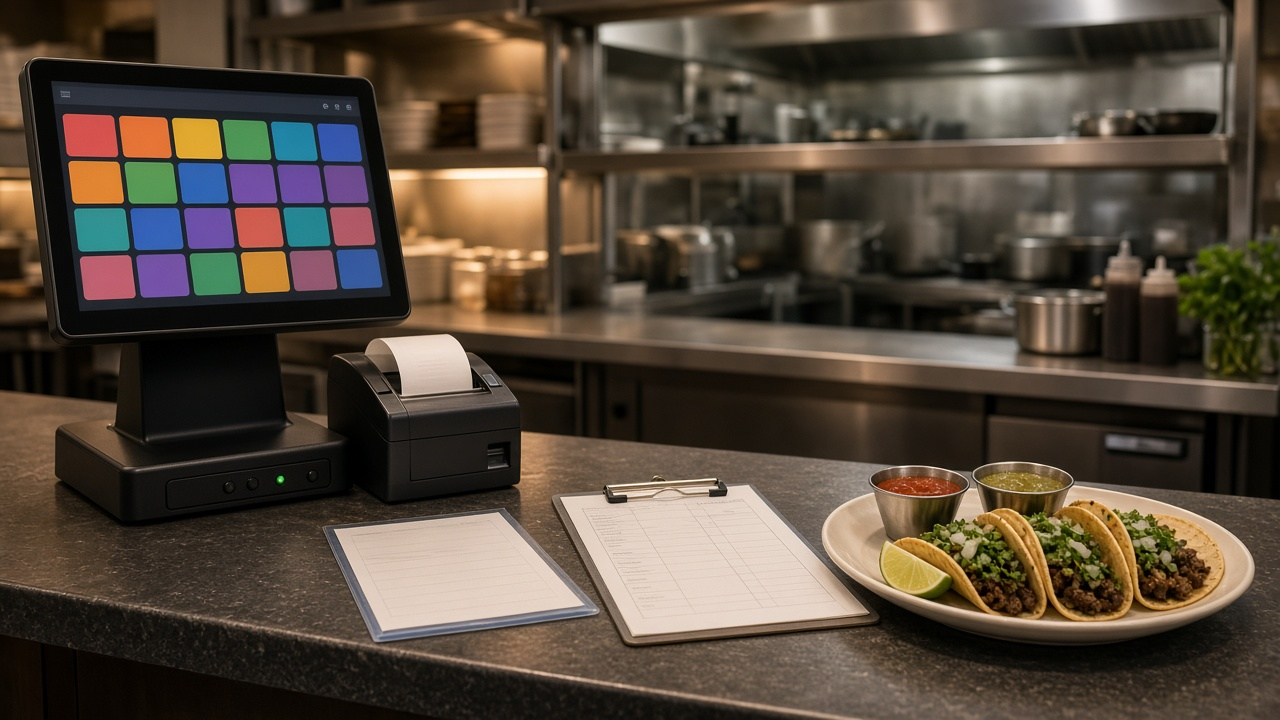
A new restaurant's POS menu is often built in a rush the week before opening, by whoever has a free evening. The result shows up on the first busy Friday: servers hunting for buttons, modifiers that let someone order a taco with no tortilla, drinks printing in the kitchen, and sales reports that lump beer in with food. The Toast POS Menu Build Sheet for a Restaurant Opening: Menu Groups, Modifier Groups, Pricing, and Prep Station Routing prompt turns your printed menu into a build sheet you can enter into Toast once, correctly.
Why a build sheet comes first
Toast is flexible, which means there are many ways to build the same menu badly. A build sheet is the plan you agree on before anyone clicks. It lists every menu, menu group, item, price, sales category, tax rate, prep station, and modifier group in one place. The owner can check prices, the chef can check routing, and the person entering it can work straight down the table. When something changes later, the sheet tells you which shared modifier group to edit so the change happens once.
What the prompt produces
- Menu structure with menus and menu groups in the order servers will tap them, including separate menus for anything limited to a service period.
- An item table with the button name, price or pricing strategy, sales category, tax rate, prep station, and attached modifier groups.
- Modifier groups with options, option prices, and selection rules, marking which ones should be shared across items.
- Prep station routing for every item, including add-ons that need their own station and what Expo sees.
- Channel settings for online ordering, including alcohol items and guest facing names.
- A pre-opening test script of ten orders that hit every modifier group and station.
How to fill the inputs
Paste MenuText exactly as printed, including choice and add-on wording like "choice of corn or flour, flour +0.50". The prompt only builds items and prices that appear there, and marks anything missing as PRICE NEEDED rather than guessing. Stations lists each kitchen display or printer and what it handles. SalesCategories sets how the owner wants to read reports. TaxRules should come from your accountant; the prompt uses the rate names you give and never supplies a rate of its own.
Dayparts lists service periods and anything sold only in one of them, such as a lunch combo. Channels says whether online ordering or kiosks launch on day one, which changes naming and visibility.
Walking through the example
The sample is a taqueria with tacos, a burrito, a lunch combo, horchata in two sizes, and a bottled lager. The output shows choices that are easy to miss:
- The lunch combo lives in its own menu with set availability, so it disappears at 3 without relying on staff.
- Tortilla and salsa are required groups with a minimum and maximum of one, so a ticket can never leave without them.
- Tortilla, salsa, and add-ons are shared groups, reused on every taco and on both combo tacos.
- Horchata uses size pricing instead of two separate items, which keeps the button grid clean.
- The guacamole add-on routes to the cold line while the taco stays on the grill, flagged as a two station item.
- Agua fresca is marked PRICE NEEDED because the menu never lists its flavors, and the prompt raises it as an open question for the owner.
Testing before guests arrive
The test script is the part most openings skip. Ring orders that use every modifier, every size, and every station, including a lunch combo right before and right after the cutoff. Then void them and read the test report. If beer shows up under Food or a modifier price is missing, you find it on a quiet afternoon instead of during a rush.
Mistakes to avoid
- One modifier group per item. Duplicate groups mean a price change has to be made in many places.
- Optional groups that should be required. If the kitchen needs the answer, make the guest or server pick one.
- Routing add-ons with their parent item only. If a different station prepares it, it needs its own route.
- Guessing tax. Use exactly what the accountant set up.
- Long button names. Short names on the POS, full descriptive names online.
Who it is for
This prompt fits restaurant owners, general managers, opening teams, and POS consultants preparing a Toast install. It works just as well for a menu refresh at an existing location. Setting names can vary between Toast versions, so the prompt notes where to confirm a label in your own account.
Related PromptDig links
- Prompt: Toast POS Menu Build Sheet for a Restaurant Opening: Menu Groups, Modifier Groups, Pricing, and Prep Station Routing
- More business prompts: Browse more prompts
- Have a restaurant ops prompt to add? Share a prompt