How to Use the Keyboard Maestro Macro Planner Prompt to Speed Up Law Office Matter Intake
Plan Keyboard Maestro macros for a legal assistant's repetitive matter intake: a macro group scoped to the right apps, hot key and typed string triggers, Prompt for User Input and Local variables, folder creation with date tokens, regex capture from a pasted intake email, and form filling that waits on Pause Until conditions instead of fixed delays.
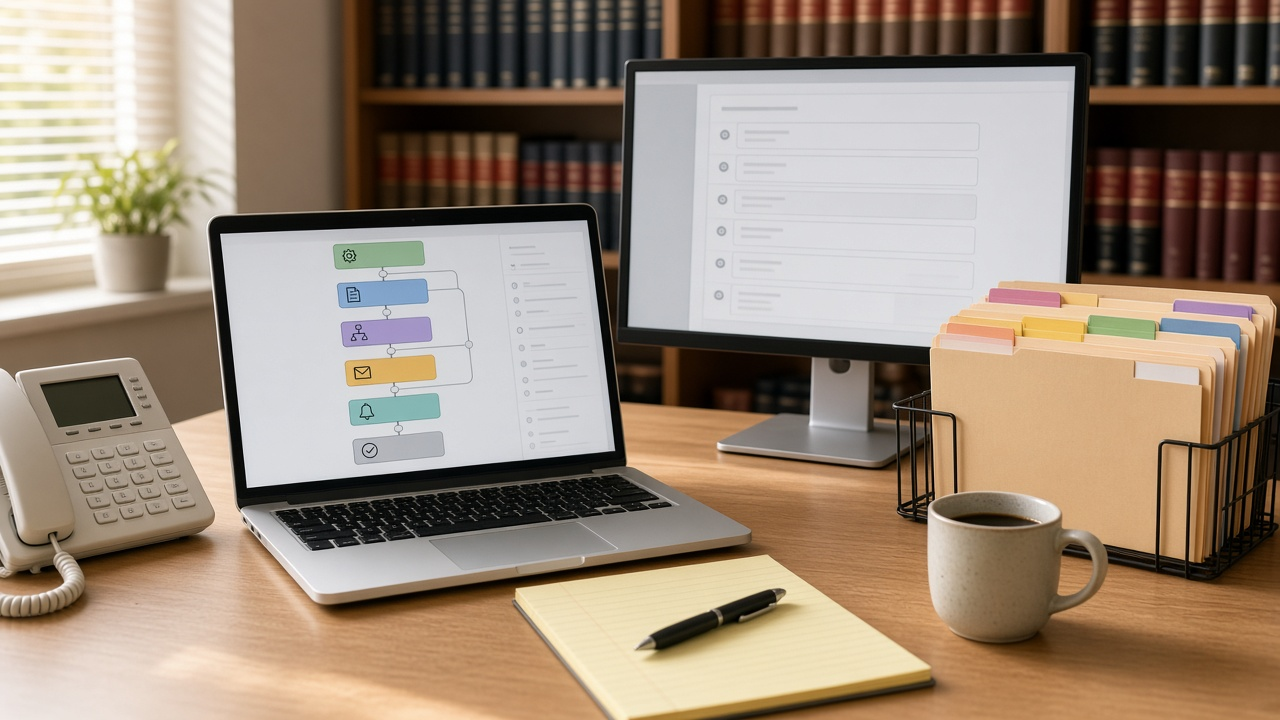
Matter intake in a small law office is full of copying. The client's name comes from an email, goes into a folder name, then into a conflict check request, then into the practice management form, often more than once a day. Keyboard Maestro on macOS can do most of that, but building reliable macros takes planning. The Keyboard Maestro Macro Planner: Law Office Matter Intake with Typed String Triggers, Prompt for User Input, and Pause Until Conditions prompt plans the macros action by action using real Keyboard Maestro action names, so you can build them in the editor without guessing.
What the prompt produces
- A macro group plan scoped to the apps you use, with a trigger for each macro that does not clash with shortcuts you already have.
- Ordered action lists for each macro, using actions such as Prompt for User Input, Search using Regular Expression, New Folder, Insert Text by Pasting, and Pause Until.
- A variables plan that uses the Local prefix for sensitive values so they are not saved after the macro ends.
- Regular expressions that pull each field out of your intake email, with what happens when a match fails.
- Reliability steps that wait for the right window instead of using fixed pauses.
- A maintenance note so the next assistant can understand and update the macros.
How to fill the inputs
ManualSteps is the task as you do it now, step by step. Be literal, including every copy, paste, and Tab key. AppsAndWindows lists the apps and any window titles that appear, such as a web form whose title starts with New Matter. FolderConvention is your naming rule and root folder.
IntakeSample is a real or realistic intake message. The regular expressions are built from it, so paste one in the exact format your office receives. ExistingTriggers lists shortcuts already in use. SensitiveFields names anything that should not stay on the computer after the macro runs, such as phone numbers or opposing party names. KmVersion helps the prompt avoid actions your version does not have.
Reading the example output
The example builds four macros for a legal assistant using Apple Mail, Finder, and Google Chrome:
- Capture Intake copies the selected email text, pulls out the client, matter, opposing party, and phone with one regular expression, and stops with a message if nothing matches.
- Make Matter Folder creates a folder with today's date using the ICU date token, so every matter folder sorts by date.
- Conflict Email runs from a typed string and pastes a ready request, but leaves the opposing party for the assistant to paste, because it is not stored globally.
- Fill New Matter Form waits until the right Chrome window is in front, types the fields, and then clears the global variables.
Tips for better results
- Test every macro on a dummy matter before using it with a real client.
- Prefer Pause Until conditions over fixed pauses. Fixed pauses fail when the computer is slow.
- Keep the macro group disabled outside the apps it is meant for.
- Save the maintenance note in a shared office document so it survives staff changes.
Mistakes to avoid
- Do not store client identifiers in global variables longer than needed.
- Do not rely on clipboard history for sensitive data.
- Do not assume a web form keeps the same field order after a vendor update. Check the Tab steps.
Who it is for
Legal assistants and paralegals, office managers at small firms, and anyone on a Mac who repeats the same intake steps many times a week.
Related PromptDig links
Open the Keyboard Maestro Macro Planner: Law Office Matter Intake with Typed String Triggers, Prompt for User Input, and Pause Until Conditions prompt and paste one real intake email to start. For more prompts that cut repetitive work, Browse more prompts. If you have an automation prompt that saves you hours, Share a prompt.