How to Use the Apple Shortcuts Automation Builder Prompt to Automate Your iPhone Morning Routine
Describe a repetitive iPhone or Mac chore in plain words and get a Shortcuts recipe you can build in minutes: every action in order with its exact settings, the magic variables that connect them, the Personal Automation trigger and whether it can run without asking, Focus filter pairing, and a test plan that catches the steps Shortcuts silently skips.
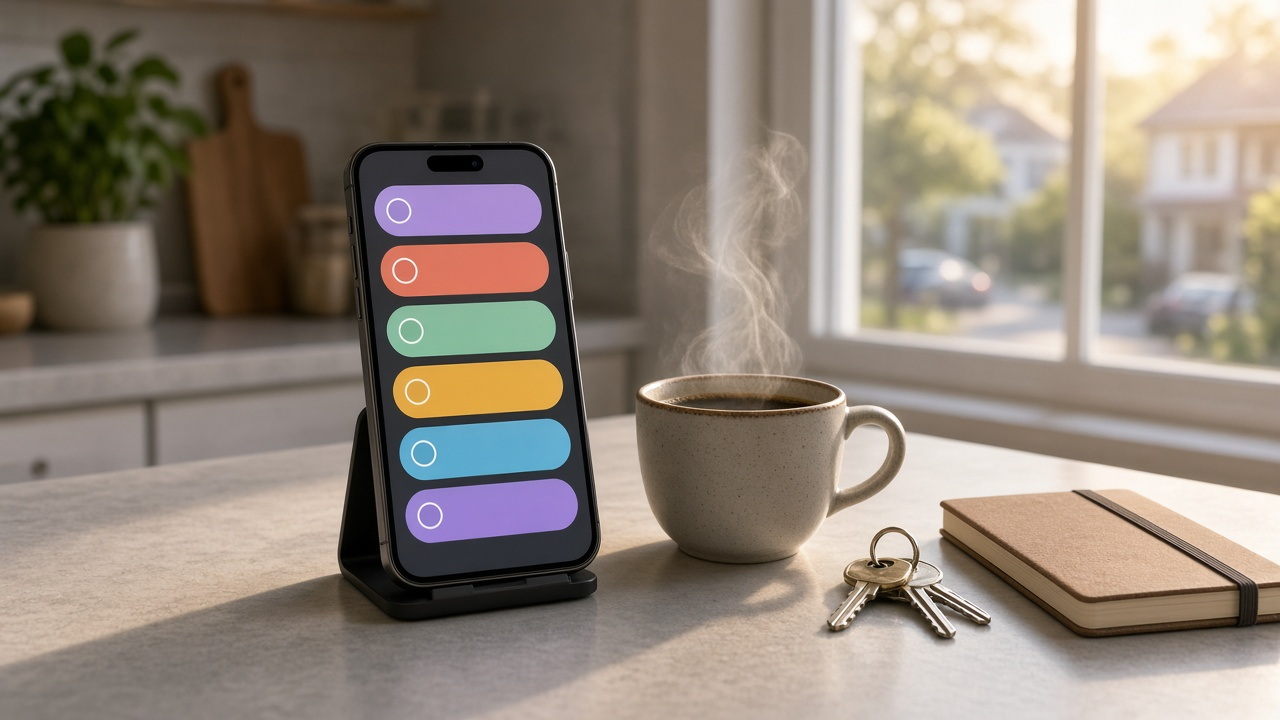
The Shortcuts app can do far more than most people use it for, but building a shortcut from scratch is slow when you do not know the exact action names, which variable feeds which step, or why an automation runs fine by hand and then silently does nothing at 7:30 in the morning. The Apple Shortcuts Automation Builder: Action by Action Recipes, Personal Automation Triggers, Variables, and Focus Filters for an iPhone Daily Routine prompt turns a chore described in plain words into a tap by tap recipe, sets up the Personal Automation trigger correctly, keeps sensitive actions behind a confirmation, and gives you a short test plan so you know it works before you rely on it.
What the prompt produces
- A feasibility check that says what Shortcuts can do with built in actions, what needs a third party app, and what cannot be automated.
- A numbered action list with exact action names, every parameter, and the magic variables or named variables that connect the steps.
- Personal Automation settings for your trigger, including whether to run immediately or after confirmation.
- An optional Focus filter or Home Screen pairing when it makes the routine smoother.
- Edge case handling for empty results, first run permission prompts, and notifications on a locked phone.
- A three run test plan with expected results and temporary debugging steps.
How to fill the inputs
Chore is the most important input. Describe it the way you would explain it to a friend: when it happens, what data it uses, and what the finished result looks like. A note, a message, a calendar event, or a file are all good end results.
Devices lists each device and its operating system version. Action names and options sometimes differ between versions, so the prompt marks anything uncertain as VERIFY.
AppsData names the apps involved, such as Calendar, Reminders, Notes, Messages, Files, or Health, plus any third party app that offers its own Shortcuts actions.
Trigger is when the automation should run: a time of day, arriving somewhere, connecting to CarPlay, turning on a Focus, opening an app, or tapping an NFC tag.
HardLimits lists actions that must never happen without you. Sending messages, deleting things, and spending money belong here.
Reading the example output
The example builds a weekday morning brief that collects meetings and due reminders into a note and drafts a text if the first meeting is early:
- Events are gathered and formatted. Find Calendar Events pulls today's events, and a Repeat with Each loop formats each one with time, title, and location.
- Reminders are added. Find Reminders filters for items due today that are not completed.
- The note is created automatically. A text block combines both lists and Create Note saves it to a Daily folder.
- The message waits for you. The Send Message step keeps Show When Run turned on, so the text appears as a draft instead of sending on its own.
- Edge cases are covered. An empty calendar produces a clear line instead of a blank note, and all day events can be filtered out.
Tips for better results
- Run the shortcut once by hand before enabling the automation. That is when iOS asks for access to Calendar, Reminders, and Notes.
- Name your variables clearly. Set Variable steps make long shortcuts much easier to edit later.
- Add Quick Look or Show Result after tricky steps while testing, then remove them.
- Keep one shortcut per job. Several small shortcuts are easier to fix than one giant one.
Mistakes to avoid
- Do not set an automation that sends messages or deletes data to run without confirmation.
- Do not assume an action exists because you saw it in an old tutorial. Search for it in the action list on your device.
- Do not forget about empty results. A shortcut that fails on a quiet day will make you stop trusting it.
- Do not stack too many automations on the same trigger time, since they can compete with each other.
Who it is for
Busy professionals who want a daily briefing, parents managing family calendars, freelancers who log time or expenses from their phone, and anyone who has tried Shortcuts and given up because the first attempt did not work.
Related PromptDig links
Start with the Apple Shortcuts Automation Builder: Action by Action Recipes, Personal Automation Triggers, Variables, and Focus Filters for an iPhone Daily Routine prompt and describe your chore in plain words. To find more prompts that save time every day, Browse more prompts. If you have built a shortcut recipe others would love, Share a prompt.