How to Use the YouTube End Screen and Card Planner Prompt to Point Viewers at Your Next Video
Plan the end screen and info cards for one YouTube video from your own Studio data: an eligibility check, an outro edit spec for the last 5 to 20 seconds, up to four end screen elements with a reason for each, card timing tied to your retention dips and script mentions, made for kids and link limits, and a YouTube Studio setup and review checklist.
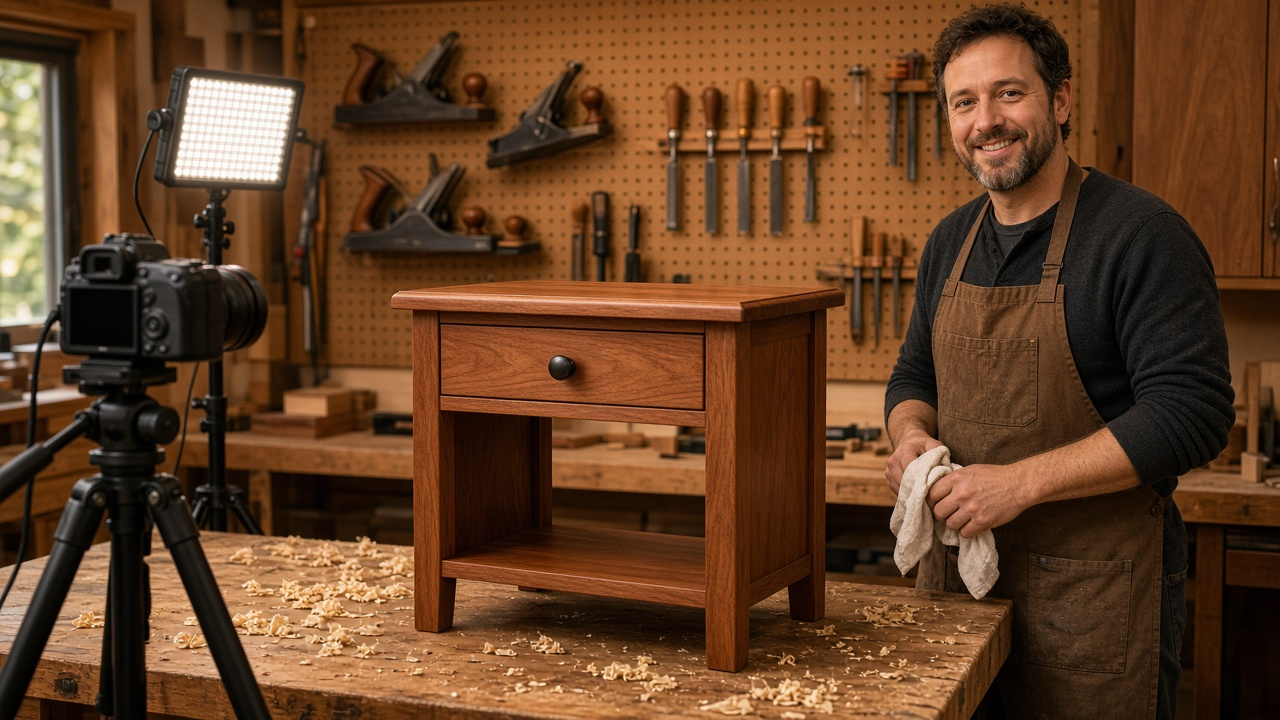
The last 20 seconds of a YouTube video decide whether a viewer who watched everything stays on your channel or leaves. Most creators fill that space in a hurry: a random end screen template, a card dropped wherever, and an outro that hides the elements behind the host's face. The YouTube End Screen and Info Card Planner: Last 5 to 20 Second Outro Layout, Up to Four Elements, Best for Viewer vs Specific Video Picks, Card Timing at Drop Off Points, Made for Kids Limits, and a Studio Setup Checklist prompt plans the end screen and cards for one video from your own analytics, so each element has a reason to be there.
What the prompt produces
- An eligibility check covering video length, the last 5 to 20 second outro window, made for kids limits, and whether link elements are allowed for your channel.
- An outro edit spec for your editor: length, shot, where the host stands, which zones stay clear, and a spoken line that points at the next video.
- An end screen element table with up to four elements, at least one video or playlist, each with a target, position, start time, and reason.
- A card plan with up to five cards timed to retention dips or script mentions, with short messages and teasers.
- A list of conflicts to avoid, such as cards inside the outro or duplicate targets.
- A YouTube Studio setup checklist from the Editor through preview.
- A review plan for day 28 using your own channel's earlier videos as the comparison.
How to fill the inputs
VideoDetails gives the title, exact length, topic, and audience setting. Made for kids changes everything here, so state it.
RetentionNotes are timestamps from your Studio audience retention graph. If the video is new, use a similar past video and say so.
CatalogLinks lists the videos and playlists you could promote, with a line on each. Note which ones the script mentions and when.
ChannelGoal says what this video should lead to: a binge, a subscribe, or a specific next step.
LinkEligibility states your Partner Program status and any approved link destinations.
Reading the example output
The example plans an 18:42 hand tool woodworking build:
- The eligibility check is quick and specific. The outro starts at 18:22, which gives the full 20 seconds, and link elements are ruled out because there is no approved site.
- The outro is written for the editor: a locked off shot of the finished table, the host in the right third for 8 seconds, and the left half left clear for two video elements.
- The spoken line connects to an element. It mentions the sharpening video, and that exact video appears upper left as the line is spoken.
- Elements mix specific and automatic picks: the sharpening video, the joinery playlist, a subscribe element, and a best for viewer slot for people who already saw the sharpening video.
- Cards follow the data. One sits just before the 2:10 drop, one near the glue up dip, and one at 15:40 where the script names the finishing video.
- The review plan stays internal, comparing click rates with the last three build videos instead of outside numbers.
Tips for better results
- Plan the outro before you film. A few seconds of clean background footage make the end screen look intentional.
- Save a layout that works and import it on similar videos, then change only the specific video picks.
- Use the same spoken line style across videos so regular viewers learn where to look.
- Check the mobile preview. Elements take up more of a small screen.
Mistakes to avoid
- Do not put a card in the outro window. It competes with the end screen.
- Do not stack cards in the first seconds, before viewers know what the video is about.
- Do not add link elements unless your channel is eligible and the destination is approved.
- Do not judge results against benchmarks from other channels. Compare with your own videos.
Who it is for
YouTube creators in education, hobbies, and tutorials who want viewers to keep watching, video editors who build outros for clients, channel managers setting up repeatable templates, and small businesses using YouTube for how to content.
Related PromptDig links
Open the YouTube End Screen and Info Card Planner: Last 5 to 20 Second Outro Layout, Up to Four Elements, Best for Viewer vs Specific Video Picks, Card Timing at Drop Off Points, Made for Kids Limits, and a Studio Setup Checklist prompt and paste your video details and retention notes. For more creator and channel prompts, Browse more prompts. If you have a YouTube workflow prompt that works, Share a prompt.