📱 Social Media
YouTube End Screen and Info Card Planner: Last 5 to 20 Second Outro Layout, Up to Four Elements, Best for Viewer vs Specific Video Picks, Card Timing at Drop Off Points, Made for Kids Limits, and a Studio Setup Checklist
Plan the end screen and info cards for one YouTube video from your own Studio data: an eligibility check, an outro edit spec for the last 5 to 20 seconds, up to four end screen elements with a reason for each, card timing tied to your retention dips and script mentions, made for kids and link limits, and a YouTube Studio setup and review checklist.
0Reviews
Prompt
Act as a YouTube channel strategist who sets up end screens and info cards in YouTube Studio for educational and hobby channels, edits outros with element safe space in mind, and reads audience retention graphs before placing a single card.

Inputs:
- Video title, length, topic, and audience setting (made for kids or not): [VideoDetails]
- Retention dips and moments from your own Studio analytics or a similar past video, with timestamps: [RetentionNotes]
- Related videos and playlists on your channel you could promote, with one line each: [CatalogLinks]
- What this video should lead to (next video, playlist binge, subscribe, website): [ChannelGoal]
- YouTube Partner Program status and any approved link destinations: [LinkEligibility]
- Output format: [Format]

Generate:
1. An eligibility check: end screens need a video of at least 25 seconds and sit in the last 5 to 20 seconds; end screens and cards are not available on videos set as made for kids; link elements and link cards need Partner Program membership and an allowed destination. State what LinkEligibility allows.
2. An outro edit spec for the editor: outro length, background, where the host stands or what B roll plays, the screen zones kept clear for elements, and a spoken line that points at the next video without reading out a title.
3. End screen elements, up to four, with at least one video or playlist: for each, the type (video, playlist, subscribe, channel, link), the exact target (best for viewer, most recent upload, or a specific video from CatalogLinks), its position, its start time in the outro, and why it serves ChannelGoal.
4. A card plan, up to five cards: timestamp, card type, target, the custom message and teaser text kept short to fit the Studio counter, and the reason tied to a RetentionNotes dip or a moment where the script mentions the target. No card in the outro window.
5. Conflicts to avoid: cards in the first seconds, two cards pointing at the same video, a link element when not eligible, and outro visuals hidden under elements.
6. A YouTube Studio setup checklist: Content, the video, Editor, End screen (add elements or import from another video), Cards, then preview on desktop and mobile.
7. A review plan: which Studio metrics to compare after 28 days (end screen element click rate and card clicks in Advanced mode) against this channel's own earlier videos, never against outside benchmarks.

Constraints:
- Use only timestamps and videos given in the Inputs.
- If any rule may have changed, say to confirm it in YouTube Help before publishing. No em dashes.
Instructions
Replace every [bracket] with your details before running. Works on ChatGPT, Claude, and Gemini.
Generated Output
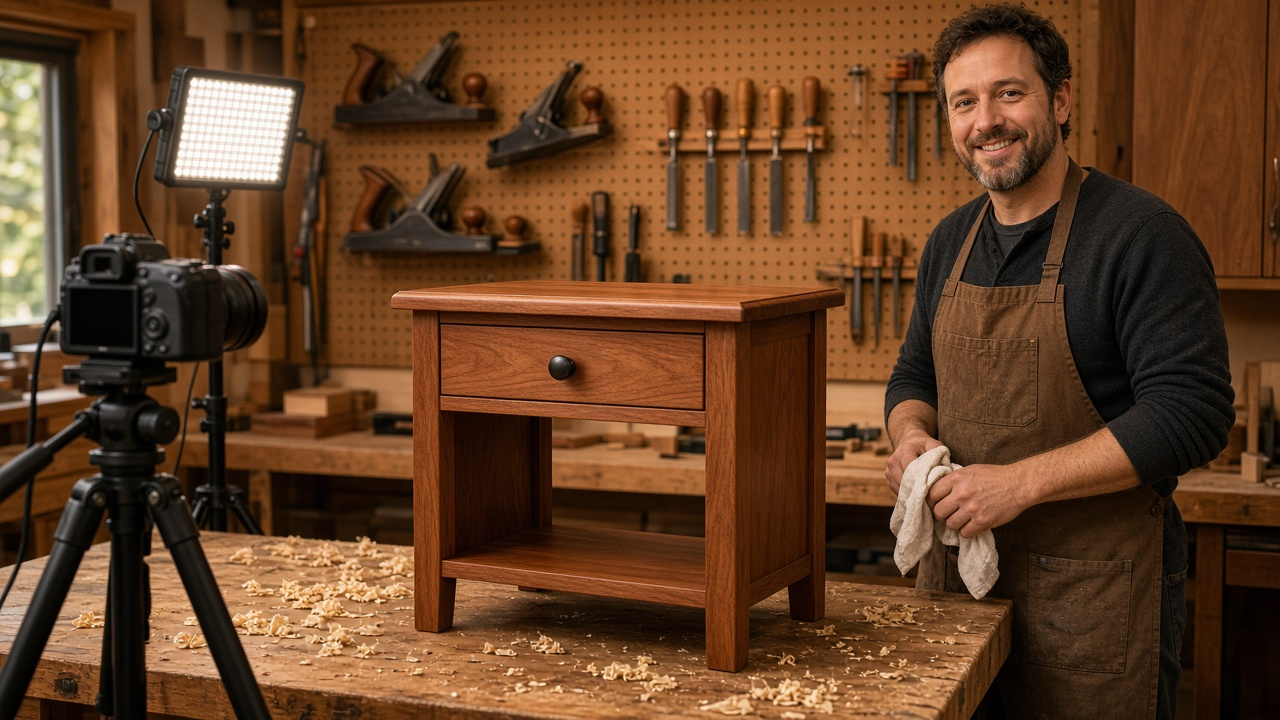
This image was generated using the prompt above.
Examples
Example Input
VideoDetails: "Building a Cherry End Table with Hand Tools", 18:42, woodworking, not made for kids
RetentionNotes: from a similar build video: drop after the intro at about 2:10, a dip during the long glue up near 9:30, steady after that; outro starts at 18:22
CatalogLinks: "Sharpening Chisels for Beginners" (most viewed); playlist "Hand Tool Joinery" (7 videos); "My Finishing Schedule for Cherry" (mentioned at 15:40 in this video)
ChannelGoal: keep viewers on the channel and grow subscribers
LinkEligibility: in the Partner Program, no merch or approved website yet
Format: eligibility, outro spec, element table, card table, checklist, review plan
Example Output
1. Eligibility check
- Length 18:42, so an end screen is allowed. Outro window: 18:22 to 18:42, which is the full 20 seconds.
- Not made for kids, so end screens and cards are available.
- Partner Program yes, but no approved website or merch, so no link elements or link cards. Use video, playlist, subscribe, and channel types only.

2. Outro edit spec (20 seconds)
- 18:22 to 18:42: locked off wide shot of the finished table on the bench, slow push in, warm shop light.
- Host stands at screen right third for the first 8 seconds, then steps out of frame.
- Keep clear: left half of the frame for two video elements, a lower right zone for the subscribe circle.
- Spoken line at 18:24: "If your chisels skipped on that cherry, the sharpening video on screen will fix it. And the joinery playlist has every joint from this build."
- No music swell over the line; no burned in text.

3. End screen elements
| # | Type | Target | Position | Start | Why |
| 1 | Video | Specific: Sharpening Chisels for Beginners | upper left | 18:24 | matches the spoken line and is the channel's most viewed entry video |
| 2 | Playlist | Hand Tool Joinery | lower left | 18:24 | a 7 video binge path for viewers who watched to the end |
| 3 | Subscribe | Channel subscribe | lower right | 18:30 | appears after the host steps out |
| 4 | Video | Best for viewer | upper right | 18:30 | lets YouTube pick for viewers who already saw the sharpening video |
Rule met: at least one video or playlist element.

4. Card plan
| Time | Type | Target | Custom message | Teaser | Reason |
| 2:05 | Playlist | Hand Tool Joinery | Every joint, start to finish | Joinery playlist | just before the 2:10 drop seen on the similar video |
| 9:25 | Video | Sharpening Chisels for Beginners | Chisels dull on the glue up? | Sharpen first | glue up dip near 9:30 |
| 15:40 | Video | My Finishing Schedule for Cherry | Full finishing schedule | Finishing video | the script names this video here |
No card after 18:22. Three cards are enough; two more are allowed but would repeat targets.

5. Conflicts to avoid
- No card before the hook ends.
- Sharpening video appears once as a card and once as an element, with 9 minutes between them, which is acceptable; do not add a third.
- Do not place an element over the table top in the outro shot.

6. YouTube Studio setup checklist
1. Studio, Content, open the video, Editor.
2. End screen: add the four elements above, set each start time, drag to the positions.
3. Save, then Cards: add the three cards with times and messages.
4. Preview on a phone and on desktop; check that elements do not cover the host.
5. Optional: save this layout and import it from this video on the next build video.

7. Review plan (day 28)
- Studio Analytics, Advanced mode: end screen element click rate per element and card clicks per card.
- Compare with your last three build videos, not with outside numbers.
- If the playlist element is clicked least, swap it with the finishing video next time and compare again.
- Confirm current end screen and card rules in YouTube Help before you publish, since options can change.