How to Use the AutoHotkey v2 Script Writer Prompt to Stop Retyping the Same Text at Work
Write a working AutoHotkey v2 script for a Windows office worker who types the same blocks all day: a trigger naming scheme that never fires by accident, hotstrings for signatures and dates, app specific hotkeys scoped with #HotIf, clipboard macros that restore what you had copied, a shortcut conflict check, a v1 to v2 syntax check, install and startup steps, and a test plan.
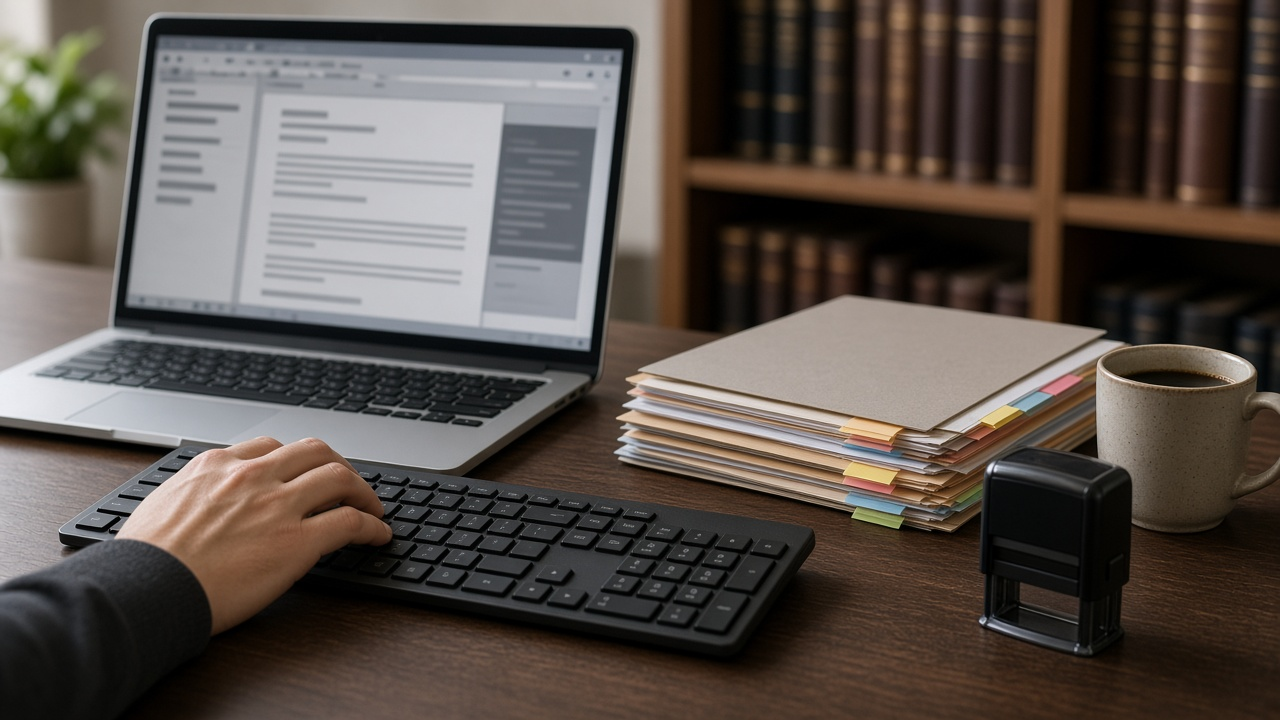
If you type the same signature, disclaimer, or date format dozens of times a day on Windows, AutoHotkey can do it for you in a keystroke. The catch is that most scripts you find online are written for AutoHotkey v1, and pasting them into v2 produces errors. The AutoHotkey v2 Script Writer for Office Staff: Hotstrings with Safe Trigger Prefixes, App Specific Hotkeys with #HotIf, Clipboard Macros, Date Math, and a v1 Syntax Check prompt writes a clean v2 script for your apps, with triggers that never fire by accident, hotkeys that only work where they should, and a test plan to check everything before you rely on it.
What the prompt produces
- A trigger plan with a prefix for every hotstring, so normal typing never expands by mistake.
- A conflict check against shortcuts you already use and common app defaults.
- One complete v2 script grouped into sections for global hotstrings, dates, app specific hotkeys, and clipboard macros.
- Clipboard macros that save what you had copied, act on your selection, and restore the clipboard.
- A v1 syntax check listing what would break if you pasted older code.
- Install and startup steps so the script runs every time you sign in.
- A test plan with each trigger, where to test it, and the expected result.
How to fill the inputs
AppsUsed lists your role and the programs you type in. Process names such as WINWORD.EXE let the script limit hotkeys to one app.
TextBlocks are the paragraphs you retype: signatures, confidentiality lines, addresses, standard replies.
DateNeeds covers dates you type often, such as today written out or a deadline a set number of days ahead.
AppActions are repeated actions in one program, such as inserting a signature block in a document.
ClipboardTasks start from text you select, like turning a matter number into a formatted reference line.
ExistingShortcuts are keys you already depend on. The prompt avoids them.
Reading the example output
The example writes a script for a paralegal who works in Word, Outlook, and a browser:
- Every hotstring starts with a bracket. Typing ]sig inserts the signature, but the letters sig on their own never trigger anything.
- Conflicts are caught early. Several obvious combinations are already used by Word, so the script uses three modifier hotkeys and turns the pleading block into a Word only hotstring.
- Dates are calculated. One trigger writes today's date in full and another writes the date 14 days from now in the format the office uses.
- Hotkeys are scoped. The matter number macro only works in Outlook, inside a #HotIf block, so it cannot interfere elsewhere.
- The clipboard is respected. The macro saves the clipboard, copies the selection, formats it, and puts your original clipboard back. If nothing is selected, it shows a short message.
- Old syntax is flagged. The v1 check shows exactly how commands, variables, and context blocks changed.
Tips for better results
- Start with five or six triggers you use every day. Add more once those are habit.
- Keep the script in a folder you back up, and add a comment above each section.
- Test in Notepad first, then in the real app, using the test plan.
- Ask the prompt to add a tray menu or a reload hotkey once you are comfortable editing.
Mistakes to avoid
- Do not paste v1 code into a v2 script. Look for commas after commands and percent signs around variables.
- Do not store passwords, client data, or login steps in a script file.
- Do not install on a managed work computer without checking with IT.
- Do not use triggers that are real words, or they will expand in the middle of sentences.
Who it is for
Paralegals, medical office staff, customer support agents, bookkeepers, recruiters, and anyone on Windows who types the same text all day and wants a script they can read and change.
Related PromptDig links
Open the AutoHotkey v2 Script Writer for Office Staff: Hotstrings with Safe Trigger Prefixes, App Specific Hotkeys with #HotIf, Clipboard Macros, Date Math, and a v1 Syntax Check prompt and list your apps and repeated text. For more productivity and automation prompts, Browse more prompts. If you have a time saving prompt for office work, Share a prompt.