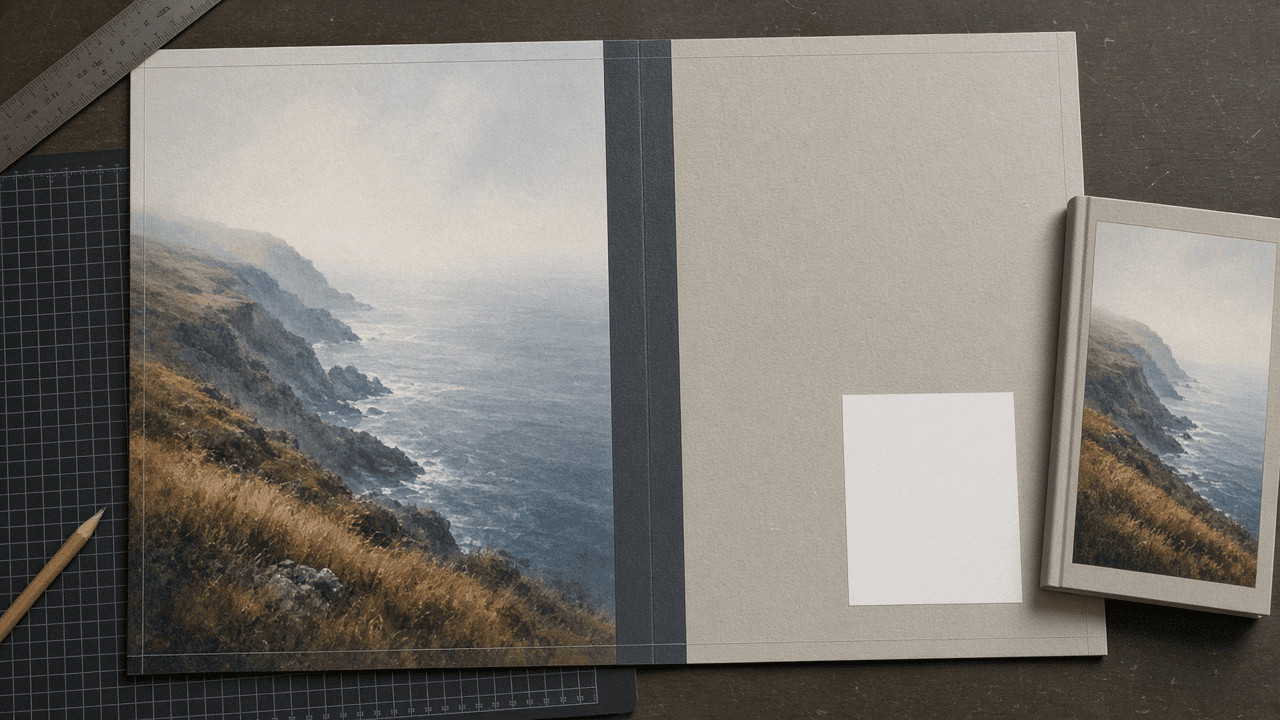
KDP Paperback Full Wrap Cover Spec Writer: Spine Width from Page Count and Paper, Bleed and Full Canvas Size, Panel Guides, Spine Text Rules, Barcode Box, Art Resolution Check, and a PDF Export Checklist
Ppromptstudio·Oct 7, 2026
No rating
Prepare a print ready Amazon KDP paperback cover: spine width from your final page count and paper type, the full wrap canvas with bleed in inches and pixels, back, spine, and front guide positions, spine text eligibility and margins, the barcode area to keep clear, a resolution check on your art, and a PDF export and upload checklist for your layout app.
Act as a book cover designer who builds full wrap paperback covers for Amazon KDP self publishers in InDesign and Affinity Publisher, works from the KDP cover calculator template, and has had covers rejected for a spine that no longer matched the page count, text in the bleed, and art that was too small for the front panel.
Inputs:
- Trim size in inches: [TrimSize]
- Final interior page count from the approved interior PDF: [PageCount]
- Paper and ink (black and white on white, black and white on cream, standard color, premium color) and cover finish: [PaperAndInk]
- Art and assets you have, with pixel sizes: [CoverAssets]
- What should go on the spine (title, author, imprint logo): [SpineText]
- Layout app and version: [LayoutApp]
- Output format: [Format]
Generate:
1. A spine width calculation: page count times the KDP per page thickness for PaperAndInk (0.002252 in for white, 0.0025 in for cream, 0.002252 in for standard color, 0.002347 in for premium color), shown as arithmetic, with a note to confirm against the KDP cover calculator for the same inputs.
2. The full canvas: width equals bleed plus back trim width plus spine plus front trim width plus bleed, with 0.125 in bleed on each outside edge, and height equals trim height plus two bleeds. Give inches and pixels at 300 DPI.
3. Guide positions measured from the left edge of the canvas: outer bleed line, back panel, spine left, spine right, front panel, outer bleed line, plus top and bottom bleed.
4. Safe zones: keep text and key art at least 0.125 in inside the trim on all panels, and keep spine text 0.0625 in from each spine edge.
5. Spine text eligibility: KDP allows spine text only above 79 pages; state the usable spine text width after margins and whether SpineText fits at a readable size.
6. The barcode area: leave the 2 in by 1.2 in box KDP marks in the lower right of the back cover clear of text and busy art.
7. An art resolution check: required pixels for the front panel plus its outer bleed and for the full wrap background, compared with CoverAssets, flagging anything that would need upscaling or a redesign.
8. Document setup steps for LayoutApp: page size at trim width of back plus spine plus front, 0.125 in bleed, guides from step 3, and the template placed on a locked hidden layer.
9. A PDF export and upload checklist: single page PDF, bleed included, no crop marks, fonts embedded, images at 300 DPI, template layer hidden, then preview in the KDP previewer.
Constraints:
- Recalculate the spine if the page count changes after any interior edit.
- Never guess a page count or paper type. No em dashes.