📁 Image Generation
Phone Wallpaper Prompt: ChatGPT Lock Screen Image Pack
Turn a mood, colors, and your phone model into a tall ChatGPT wallpaper prompt with a clear zone for the clock, safe crop margins, and three matching variants.
0Reviews
Prompt
Act as a mobile wallpaper designer who writes ChatGPT image prompts for lock screens and home screens, so the art stays readable behind the clock, widgets, and app icons after the phone crops it.

Inputs:
- Phone model or screen shape (for example a tall iPhone or Android phone): [PhoneModel]
- Lock screen, home screen, or both: [ScreenUse]
- Subject or scene I want: [Subject]
- Mood and color palette (names or hex codes): [Palette]
- Art style (photo, watercolor, 3D render, flat vector, film grain): [ArtStyle]
- Busy areas to avoid (top clock zone, bottom dock, widget row): [ClearZones]
- Things I never want (text, logos, faces, brand names): [Avoid]

Generate:
1. Layout plan: where the subject sits for ScreenUse on PhoneModel, which zones in ClearZones stay calm, and how much empty space sits behind the clock.
2. Main ChatGPT image prompt: one paragraph that asks for a tall portrait image, names Subject, ArtStyle, Palette, lighting, and texture, keeps the top quarter low in detail, and states every item in Avoid as a no.
3. Crop safety note: keep the subject inside the middle 70 percent of the width and away from the top and bottom edges, because each phone crops tall images differently.
4. Three matching variants: a darker version for dark mode, a simpler version with fewer elements for the home screen, and a seasonal or time-of-day twist, each written as a full prompt.
5. Fix-it lines: one sentence each for subject too big, clock area too busy, colors too dull, and image looks blurry.
6. Set-up steps: how to save the image and set it as wallpaper on PhoneModel, and to zoom out or reposition if the crop cuts the subject.

Rules:
- No copyrighted characters, brand logos, real celebrities, or readable text in the image.
- Never promise an exact pixel size; ChatGPT returns a tall image that the phone scales and crops.
- If PhoneModel is unknown, write for a generic tall phone and say so.
Instructions
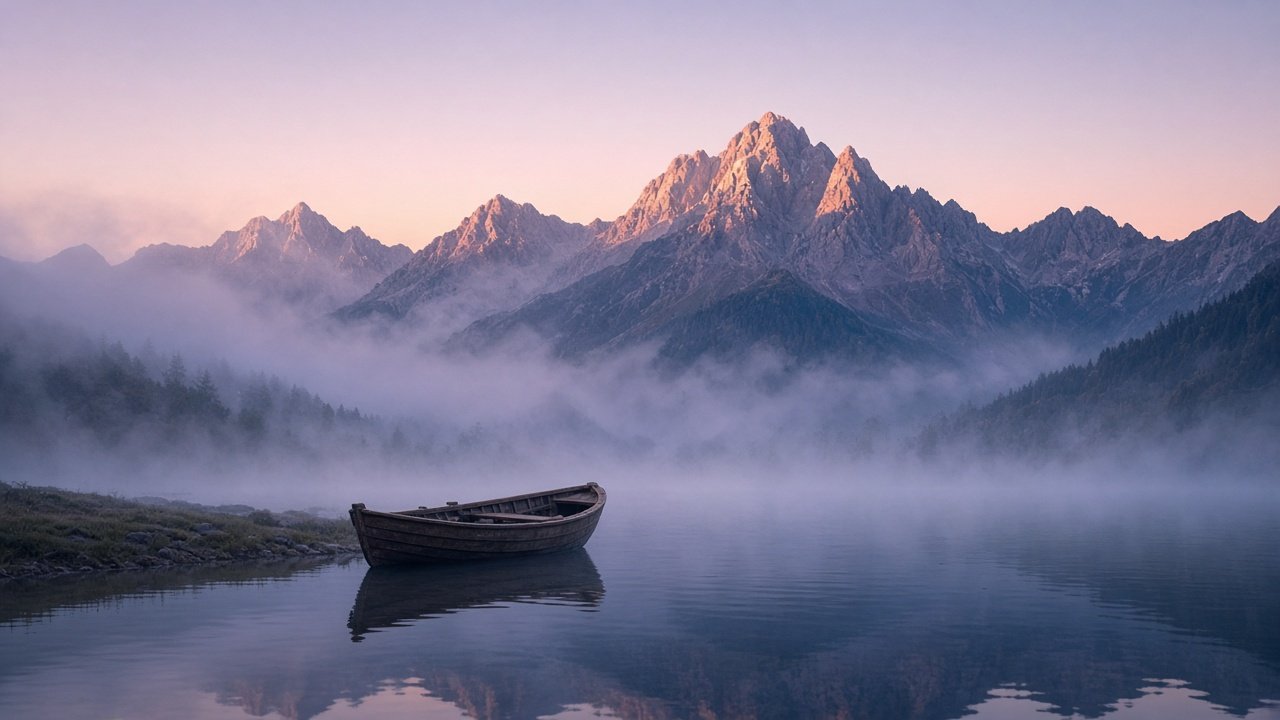
Paste the prompt into ChatGPT with image generation turned on, fill in your phone, scene, palette, and clear zones, and generate. If the clock area looks busy, use the matching fix-it line instead of rewriting everything. Keep wallpapers free of logos, characters, and celebrity faces. The example targets a tall phone screen; the result image on this page is shown cropped to 16:9. Do not include trademarked logos, brand characters, or real people without permission.
Generated Output
This image was generated using the prompt above.
Examples
Example Input
PhoneModel: iPhone with a tall screen
ScreenUse: both lock screen and home screen
Subject: a misty mountain lake at dawn with a small wooden rowboat near the shore
Palette: soft blue, pale lavender, warm peach light on the peaks
ArtStyle: calm photorealistic landscape, slight film grain
ClearZones: keep the top quarter for the clock and the bottom fifth for the dock
Avoid: text, logos, people, birds, bright yellow
Example Output
1. LAYOUT PLAN
Lock and home screen on a tall iPhone: the peaks and peach sky sit in the upper middle, the lake fills the lower half, and the rowboat sits slightly left of center just below the middle line. The top quarter is soft sky with thin mist so the clock reads clearly. The bottom fifth is calm dark water with gentle reflections, quiet enough for the dock.

2. MAIN CHATGPT IMAGE PROMPT
Create a tall vertical portrait image for a phone wallpaper: a calm photorealistic landscape of a misty mountain lake at dawn. Soft blue water, pale lavender mist, and warm peach light touching the mountain peaks. A small wooden rowboat rests near the shore, slightly left of center, just below the middle of the frame. Keep the top quarter of the image as smooth, low-detail sky with thin mist, and the bottom fifth as calm, dark, gently reflective water. Slight film grain, soft natural light, sharp focus on the boat and peaks. No text, no logos, no people, no birds, no bright yellow.

3. CROP SAFETY NOTE
Keep the boat and peaks inside the middle 70 percent of the width. Nothing important touches the top or bottom edge, so the phone can crop the sides and the clock can overlap the sky.

4. VARIANTS
Dark mode: Same scene at blue hour just before sunrise, deep navy water, lavender mist, the peaks only faintly lit with peach, the rowboat a soft silhouette. Top quarter is dark, smooth sky. No text, no logos, no people, no birds, no bright yellow.
Home screen simple: Same lake and peaks with heavy mist, no rowboat, very few details, wide areas of smooth soft blue so app icons stay readable. No text, no logos, no people, no birds, no bright yellow.
Season twist: Same lake in early winter, a thin line of snow on the peaks and shore, pale lavender sky, the rowboat pulled onto the snowy bank. Keep the top quarter smooth. No text, no logos, no people, no birds, no bright yellow.

5. FIX-IT LINES
Subject too big: Make the rowboat smaller and move the peaks lower so there is more open sky.
Clock area too busy: Remove all detail from the top quarter and replace it with smooth gradient mist.
Colors too dull: Raise the warmth of the peach light on the peaks and deepen the blue of the water.
Looks blurry: Render with crisp detail on the boat edges and the mountain ridgeline, no soft haze over the whole frame.

6. SET-UP STEPS
Save the image to Photos, open Settings, then Wallpaper, add a new wallpaper and pick the image. Pinch to reposition so the boat stays below the clock, then check the home screen and turn on the dimmed or blurred option if icons are hard to read.