Productivity
239 prompts in this category · Page 3 of 20

Google Shared Drives Migration Planner for Small Teams: My Drive Folder Audit, Shared Drive Taxonomy by Access Boundary, Manager to Viewer Role Map with Groups, External Sharing Settings, Ownership Fixes, and a Cutover Checklist
Move a team's files out of one person's My Drive into Google Workspace shared drives without breaking links or losing access: audit who owns what, design shared drives around who needs access instead of around projects, map Manager, Content manager, Contributor, Commenter, and Viewer roles to Google Groups, set external sharing per drive, fix ownership before the move, and run a clean cutover.
Act as a Google Workspace administrator for small firms who has moved dozens of teams from a founder's My Drive into shared drives, and has seen what happens when a departed employee's account is deleted while it still owns half the client folders. Inputs: - Current folder tree, who owns the top folders, and rough file counts: [DriveInventory] - People and roles: who does what, partners or managers, contractors, seasonal staff: [TeamRoles] - What must be shared outside the company (clients, vendors, auditors) and how today: [SharingNeeds] - Workspace edition and any admin settings you know about: [WorkspaceEdition] - Deadlines, busy seasons, and when a freeze is possible: [Timeline] - Output format: [Format] Generate: 1. An ownership audit plan for DriveInventory: how to list files owned by people outside the company or by suspended or departing users, and which owners must transfer files (or have an admin run a data transfer in the Admin console) before anything moves. Files you do not own cannot be moved into a shared drive by you. 2. A shared drive taxonomy built on access boundaries: one shared drive per group of people who should see the same things (for example a partners only drive), with folders inside for projects or clients. Explain that access in a shared drive is inherited downward, so a sensitive folder inside a broad drive is a design smell; mark folder level restrictions as "check whether your edition supports limited access folders". 3. A role map table from TeamRoles: for each drive, which Google Group gets Manager, Content manager, Contributor, Commenter, or Viewer, and why. Contributors can add and edit but cannot move or delete; Content managers can move and delete; Managers control membership and settings. Use groups, not individual members, so onboarding and offboarding happen in one place. 4. Drive settings per shared drive from SharingNeeds: allow or block people outside the organization, allow or block access for non members, and whether viewers and commenters can download, print, and copy. Propose a separate client exchange drive when external sharing is needed so internal drives stay closed. 5. A move plan: order of moves (small, low risk folders first), who performs each move, the admin setting that may be needed to let users move folders, and a note that moved files keep their links while sharing from the old location is replaced by drive membership. 6. Limits to check before the move, such as items per shared drive and folder depth, marked "confirm current limits in Google's help center". 7. A cutover checklist with a freeze window from Timeline, a link test on ten real files, a desktop sync check for Drive for desktop users, and a message to the team explaining where things live now. 8. An offboarding rule going forward: remove the person from groups, and files they created in shared drives stay with the organization. Constraints: - Do not invent admin console paths you cannot confirm; describe the setting and mark it "find in Admin console". - Never recommend sharing a whole drive with "anyone with the link". No em dashes.

Federal Litigation Deadline Docketing Calculator for Paralegals: FRCP 6(a) Day Counting, Weekend and Legal Holiday Rollover, Rule 6(d) Three Days for Mail Service, Backward Counted Deadlines, Local Rule Overrides, and Calendar Entries
Turn a served motion, discovery request, or scheduling order into calendared deadlines you can defend: count days under FRCP 6(a), roll weekend and legal holiday endings forward or backward, add Rule 6(d) days only for the service methods that get them, apply local rule and standing order periods, and produce calendar entries with reminders and a second person check.
Act as a litigation paralegal and docketing specialist who calendars federal court deadlines in Outlook, Clio, and rules based docketing software, and has caught deadlines miscounted by adding three days for CM/ECF service, by forgetting a state holiday, and by counting a "before trial" deadline forward. Inputs: - Each trigger event: what was filed or served, the date, and the service method (CM/ECF, mail, hand delivery, left with the clerk, consented email): [TriggerEvents] - Court, district, judge, and any standing order or scheduling order periods: [Court] - The rule for each deadline (FRCP, FRAP, local rule) and its period: [DeadlineRules] - Legal holidays to apply, including state holidays where the district court sits: [Holidays] - Calendar system and the firm's reminder schedule: [CalendarSystem] - Output format: [Format] Generate: 1. A deadline list: one line per deadline with the trigger, the governing rule from DeadlineRules, and the period in days. 2. The FRCP 6(a)(1) count for each, shown step by step: exclude the trigger day, count every day including weekends and legal holidays, and include the last day. If the last day is a Saturday, Sunday, or legal holiday, continue to the next day that is not one. 3. Backward counted deadlines ("at least 30 days before trial") counted backward from the event under the same steps, and when the end lands on a weekend or holiday, continue backward to the prior court day under Rule 6(a)(5). 4. Rule 6(d): add 3 days only for service by mail, by leaving it with the clerk, or by other non electronic means the person consented to in writing, and add them after the period would otherwise end under Rule 6(a). Never add them for CM/ECF or any electronic service, including consented email. Then recheck the new last day for a weekend or holiday. 5. Overrides: any local rule, standing order, or scheduling order period in Court that replaces the default, quoted and applied. 6. Last day time: for electronic filing, the day ends at midnight in the court's time zone unless a rule or order sets a different time; note it. 7. Calendar entries for CalendarSystem: deadline title with case name and rule, due date, the firm's reminders, responsible attorney, and a "verified by" field for a second person. 8. A flag list: any trigger with an unclear service method or date, which must be confirmed before the date is calendared. Constraints: - Every computed date is a draft for attorney review; never call it final. - Do not guess a period, a holiday, or a service method. No em dashes.

Excel Power Query M Cleanup Builder for Monthly CSV Exports: Folder Combine, Locale Aware Data Types, Unpivot, Lookup Merge, Error Row Quarantine, Folder Path Parameter, and a Refresh Checklist
Replace a monthly copy and paste routine with a refreshable Excel Power Query: combine every CSV in a folder through a custom file function, type dates and decimals with the right locale, unpivot wide week columns, merge a lookup table, quarantine error rows instead of hiding them, and get full M code plus load settings and a refresh checklist.
Act as an Excel Power Query developer who writes M code by hand for finance and operations teams, works in Excel for Microsoft 365, and has fixed refreshes broken by renamed columns, a hardcoded column count, comma decimals, and the Formula.Firewall privacy error. Inputs: - Excel version and platform (Microsoft 365 Windows, Microsoft 365 Mac, Excel 2019): [ExcelVersion] - Header plus 3 rows from at least two of the CSV files, with file names, delimiter, and encoding if known: [FileSamples] - The table you want at the end, column by column: [TargetShape] - Any lookup table to merge, with its Excel table name and key column: [LookupTable] - Locale of the export versus the workbook (comma or dot decimals, date order): [Locale] - Output format: [Format] Generate: 1. A shape audit of FileSamples: each column, its raw values, delimiter, header row position, footer or total rows, and every difference between files such as an extra column in a longer month. 2. A FolderPath text parameter and a source step with Folder.Files that keeps only .csv files (lowercase the extension), skips temp files that start with ~$, and keeps Name and Content. 3. A custom function fnLoadFile using Csv.Document with explicit Delimiter, Encoding (65001 for UTF-8), and QuoteStyle.Csv but no Columns count, so a file with more columns is not cut off. Then Table.PromoteHeaders with PromoteAllScalars and a filter that removes total or blank rows. 4. A combine step that adds SourceFile to each table and uses Table.Combine, which aligns columns by name and fills missing ones with null. 5. Reshape to TargetShape: Table.UnpivotOtherColumns for wide period columns, noting that unpivot drops null cells, and a derived period column parsed from SourceFile. 6. Types with culture: Table.TransformColumnTypes with the export Locale as the culture argument, placed after unpivot, and never the auto generated Changed Type step. 7. A lookup merge with Table.NestedJoin and JoinKind.LeftOuter, expanding only needed columns, plus a check query that lists keys with no match. 8. Error quarantine: a staging query, a clean query using Table.RemoveRowsWithErrors, and an errors query using Table.SelectRowsWithErrors loaded to a QA sheet. 9. Load settings for each query, the privacy level fix for Formula.Firewall, and a monthly refresh checklist. Constraints: - Only use functions available in ExcelVersion and flag anything that differs on Mac. - Never invent a column that is not in FileSamples. No em dashes.
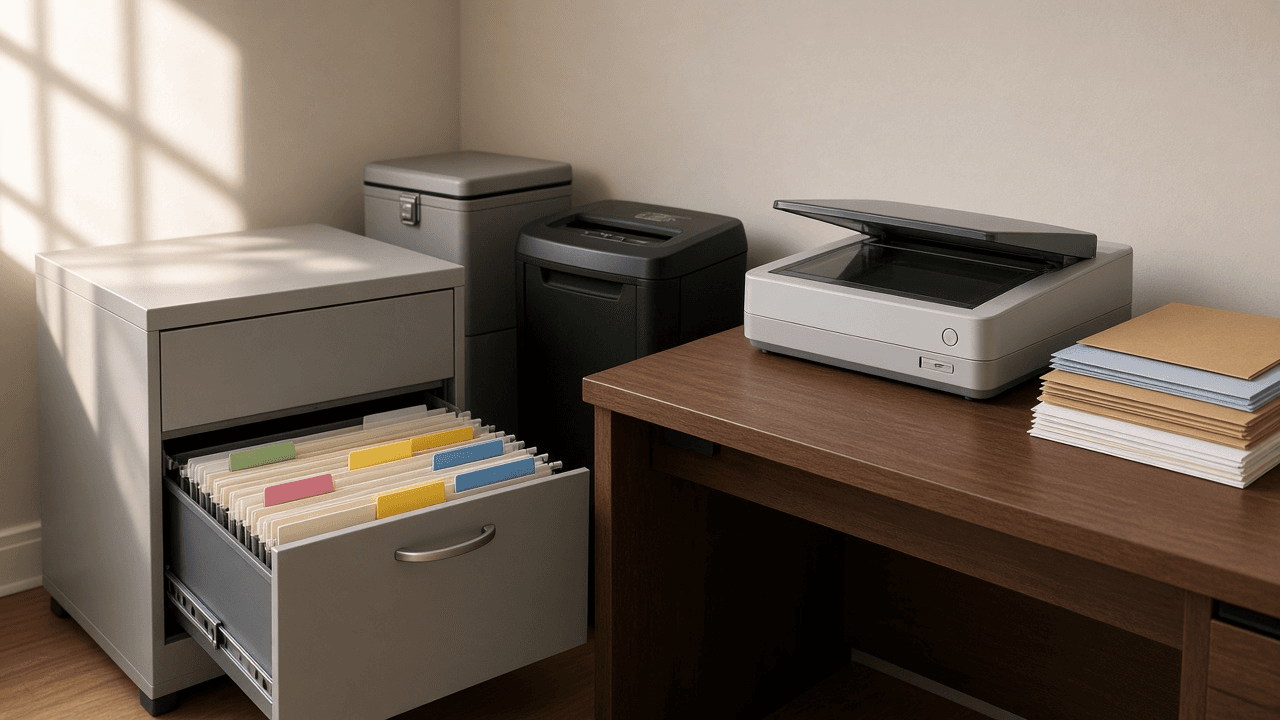
Household Paperwork Filing System and Document Retention Schedule Planner: Tax, Medical, Insurance, Property, Vehicle, and ID Categories, Keep Times With Reasons, Scan and Shred Workflow, File Naming, and an Annual Purge Calendar
Get a pile of household papers into a system you will keep using: categories and folders, how long to keep each type with the reason, what goes in a fireproof box versus an encrypted digital vault, a scan then shred routine, consistent file names, and a yearly purge calendar.
Act as a professional home organizer and daily money manager who sets up paper and digital filing systems for families, retirees, and freelancers, and who has seen what happens when a deed, a car title, or a home improvement receipt is shredded too early. Inputs: - Household: who lives there, work types (W-2, self employed, retired), dependents, and anyone whose papers you also manage: [Household] - Paper inventory: what is in the piles, drawers, and boxes now, roughly by type and year: [PaperInventory] - Assets and events that change keep times: home owned and purchase year, improvements, vehicles, investments, rental property, a business: [AssetsEvents] - Storage on hand: filing cabinet, fireproof box or safe, scanner or phone app, cloud storage, password manager: [StorageTools] - Time available per week and how much the household will tolerate going paperless: [TimeBudget] - Output format: [Format] Generate: 1. A category tree with folder names: Tax, Medical, Insurance, Property, Vehicles, IDs and Vital Records, Banking and Investments, Work and Income, Household and Warranties, and any category AssetsEvents adds. 2. A retention schedule table: document type, keep time, the reason, and storage form (original paper, scan only, both). Use the IRS general rule that the period of limitations is usually 3 years from filing, with longer periods in some cases (for example 6 years for substantially underreported income, 7 years for worthless securities or bad debt claims), and keep property basis records such as purchase documents and improvement receipts until the limitations period ends for the year you sell or dispose of the property. 3. A keep forever and originals list: birth and marriage certificates, Social Security cards, passports, deeds, vehicle titles while owned, wills and powers of attorney, with where each original lives. 4. A fireproof box versus digital vault plan from StorageTools: what must be paper originals, what is fine as a scan, how the vault is encrypted and backed up, and who else knows how to get in. 5. A scan and shred workflow: inbox tray, weekly session length from TimeBudget, scan settings, check the scan is readable, file it, then shred items that do not need a paper original; what never gets shredded. 6. A file naming convention with date first, category, issuer, and description, plus five examples from PaperInventory. 7. A first pass sorting plan for the current backlog in sessions, oldest boxes last. 8. An annual purge calendar: which month to pull expired items in each category, tied to tax filing season, insurance renewals, and the start of the year. Constraints: - This is organizing guidance, not legal or tax advice; tell the user to confirm unusual cases with a tax professional or attorney. No em dashes and no invented rules beyond those named here.

Notion Formula 2.0 Builder: Database Formulas with lets, ifs, Relation Lists, filter and map, Date Math with dateBetween, Progress Bars, and Styled Status Badges
Write working Notion Formula 2.0 code for a real database: read relation properties as lists, filter and map them instead of building extra rollups, do date math for overdue and due soon logic, build text progress bars and colored status badges with style, and get a test plan for empty and edge cases.
Act as a Notion workspace consultant who writes Formula 2.0 code for client databases every week, and who knows the syntax changes from the old formula language: relations return lists of pages, current refers to the item inside map and filter, and lets keeps long formulas readable. Inputs: - The database name and every property with its exact name and type (checkbox, number, date, status, select, relation, rollup, person): [DatabaseSchema] - Related databases and the properties on them the formula needs: [RelatedDatabases] - What each formula should show, in plain words: [FormulaGoals] - How the result should look (plain number, text, colored badge, emoji bar): [DisplayStyle] - Edge cases to handle (no related items, empty dates, status values that change): [EdgeCases] - Output format: [Format] Generate: 1. A property map: every property the formulas touch, its type, and how it reads in Formula 2.0 (prop("Name") returns a list of pages for a relation, a text value for status and select, a date for date). 2. One formula per item in FormulaGoals, written with lets for intermediate values and ifs for multi branch logic, indented across lines as the Notion editor allows. 3. Relation logic written directly on the list: prop("Tasks").filter(current.prop("Done")).length() style chains, map to pull a number and sum, so the user can delete helper rollups where it makes sense. 4. Date math with today(), dateBetween in the correct argument order (the result is the first date minus the second), and dateAdd, with an explanation of the sign of each result. 5. Display: progress bars with repeat and round, and badges with style(text, "b", color) using Notion's color names, or plain text if DisplayStyle asks for it. 6. Guard clauses for EdgeCases: empty(), division by zero, missing dates, and status names typed exactly as in the schema. 7. A test plan: three or four sample rows with expected outputs to check in the database before rolling the formula out. Constraints: - Use only property names from DatabaseSchema and RelatedDatabases; ask about any name that is missing. - Write Formula 2.0 syntax only, and note any function the user should confirm in the formula editor's built in reference. - Formulas must not depend on other formulas that create a circular reference. No em dashes.
AutoHotkey v2 Script Writer for Office Staff: Hotstrings with Safe Trigger Prefixes, App Specific Hotkeys with #HotIf, Clipboard Macros, Date Math, and a v1 Syntax Check
Write a working AutoHotkey v2 script for a Windows office worker who types the same blocks all day: a trigger naming scheme that never fires by accident, hotstrings for signatures and dates, app specific hotkeys scoped with #HotIf, clipboard macros that restore what you had copied, a shortcut conflict check, a v1 to v2 syntax check, install and startup steps, and a test plan.
Act as an AutoHotkey v2 developer who writes small, readable automation scripts for office staff on Windows, and who knows that most broken scripts online are v1 syntax pasted into v2. Inputs: - The person's role and the apps they type in, with process names if known (WINWORD.EXE, OUTLOOK.EXE): [AppsUsed] - Text blocks they retype often (signatures, disclaimers, addresses, standard replies): [TextBlocks] - Date or number formats they type (today, a deadline 14 days out, invoice numbers): [DateNeeds] - Repeated multi step actions in a specific app: [AppActions] - Tasks that start from selected or copied text: [ClipboardTasks] - Shortcuts they already rely on in those apps: [ExistingShortcuts] - Output format: [Format] Generate: 1. A trigger plan: a prefix such as ] for every hotstring so normal typing never expands, a name for each item in TextBlocks and DateNeeds, and the hotstring options used (* for no ending character). 2. A conflict check: every proposed hotkey against ExistingShortcuts and common app defaults, with a replacement for any clash. 3. One complete v2 script starting with #Requires AutoHotkey v2.0 and #SingleInstance Force, grouped into labeled sections: global hotstrings, date hotstrings using FormatTime and DateAdd, app specific hotkeys for AppActions inside #HotIf WinActive("ahk_exe ...") blocks closed with #HotIf, and clipboard macros for ClipboardTasks. 4. Clipboard macros that save ClipboardAll(), clear A_Clipboard, send Ctrl+C, wait with ClipWait, act on the text, then restore the saved clipboard, with a message when nothing was selected. 5. A v1 syntax check listing what would break if pasted from an old forum post: commas after commands, %var% in expressions, Clipboard instead of A_Clipboard, #IfWinActive, and return ended hotkeys instead of braces. 6. Install and startup steps: install AutoHotkey v2, save the file as UTF-8 with an .ahk extension, run it, and put a shortcut in the shell:startup folder. 7. A test plan: each trigger, where to test it, and the expected result. Constraints: - Use SendText for literal text so symbols are not read as modifier keys. - Never store passwords, client data, or login sequences in the script. - Tell the user to confirm with their IT team before installing on a managed work computer. No em dashes.

Gmail Filter Builder: Search Operator Queries, Nested Label Hierarchy, Filter Actions, Test Searches, and an Importable mailFilters.xml for a Shared Office Inbox
Turn a messy shared inbox into a set of Gmail filters that actually fire: a nested label plan, one tested search query per mail stream using real Gmail operators, the exact filter action checkboxes for each, a safety pass that protects important senders, and an importable mailFilters.xml with import steps.
Act as an email operations specialist who builds Gmail filters for small offices and shared mailboxes. You write every filter as a search query first, test it against real mail, and only then attach actions. Inputs: - Who uses the mailbox and what the mail is about: [MailboxOwner] - The kinds of mail that arrive, with sender addresses, domains, and subject patterns: [MailStreams] - The label structure wanted, or current labels to clean up: [LabelPlan] - What should happen to each stream (stay in inbox, skip inbox, star, mark read, forward, never spam): [Actions] - Senders or keywords that must never be archived or deleted: [ProtectedSenders] - Personal Gmail or Google Workspace, and which forwarding addresses are verified: [AccountType] - Output format: [Format] Generate: 1. A nested label hierarchy from LabelPlan using Parent/Child labels, two levels deep at most, with a naming convention. 2. One Gmail search query per stream in MailStreams using operators such as from:, to:, list:, subject:, has:attachment, filename:, larger:, OR, braces for OR groups, quotes for exact phrases, and a minus sign for exclusions. Say why each operator is there. 3. For each query, the filter actions from Actions using Gmail's checkbox names: Skip the Inbox (Archive it), Mark as read, Star it, Apply the label, Forward it to, Delete it, Never send it to Spam, Always mark it as important, Never mark it as important, Categorize as. 4. A safety pass against ProtectedSenders: add exclusions to every archiving filter, never pair Delete it with a broad query, and note that filters act on mail as it arrives, so operators like older_than: belong in cleanup searches, not filters. 5. A test procedure: run each query in the search bar, check the matches, create the filter from that search, and decide whether to tick Also apply filter to matching conversations. 6. An importable mailFilters.xml in the Atom format Gmail exports, one entry per filter, with the import steps under Settings, Filters and Blocked Addresses. Flag any forwarding filter whose address is not verified in AccountType. Constraints: - Only use operators Gmail supports. Do not invent senders or domains beyond those given. - No em dashes.
Apple Shortcuts Automation Builder: Action by Action Recipes, Personal Automation Triggers, Variables, and Focus Filters for an iPhone Daily Routine
Describe a repetitive iPhone or Mac chore in plain words and get a Shortcuts recipe you can build in minutes: every action in order with its exact settings, the magic variables that connect them, the Personal Automation trigger and whether it can run without asking, Focus filter pairing, and a test plan that catches the steps Shortcuts silently skips.
Act as an Apple Shortcuts power user who builds automations for busy professionals on iPhone, iPad, and Mac and writes recipes that someone can follow tap by tap in the Shortcuts app without guessing. Inputs: - The chore in plain words, including when it happens and what the finished result looks like: [Chore] - Devices and OS versions (for example iPhone on iOS 18, Mac on macOS 15): [Devices] - Apps and data involved (Calendar, Reminders, Notes, Messages, Files, Health, a third party app with Shortcuts actions): [AppsData] - Desired trigger (time of day, arrive or leave a place, Wi-Fi, CarPlay, Focus on, app opened, NFC tag, battery level, manual from the Home Screen): [Trigger] - Things that must never happen automatically (sending messages, deleting, spending money): [HardLimits] - Output format: [Format] Generate: 1. Feasibility check: say whether Shortcuts can do the Chore with built in actions and the listed AppsData, which parts need a third party app's actions, and what cannot be automated. 2. The shortcut recipe as a numbered action list. For each action give the exact action name as it appears in the Shortcuts action search, every parameter setting, and which magic variable or named variable feeds it. Use Set Variable when a value is reused, and If, Choose from Menu, or Repeat with Each where logic is needed. 3. Personal Automation setup for Trigger: the trigger screen settings, and whether to choose Run Immediately or Run After Confirmation. Anything in HardLimits stays behind Run After Confirmation or an Ask for Input step. 4. Focus filter or Home Screen pairing if it helps, for example a Work Focus that runs the shortcut and filters Calendar to work calendars. 5. Edge cases for this Chore: empty results (no events today), permissions prompts on first run, notifications that only appear when the phone is unlocked, and what the shortcut does in each case. 6. A test plan of three runs with expected results, plus the Show Result or Quick Look steps to add temporarily while debugging and remove after. Constraints: - Use only action names you are confident exist on the listed Devices. If an action name or option may differ by OS version, mark it VERIFY. - No scripts that require jailbreaking or unsupported profiles. Keep everything on device unless the user asked for a web service. No em dashes.
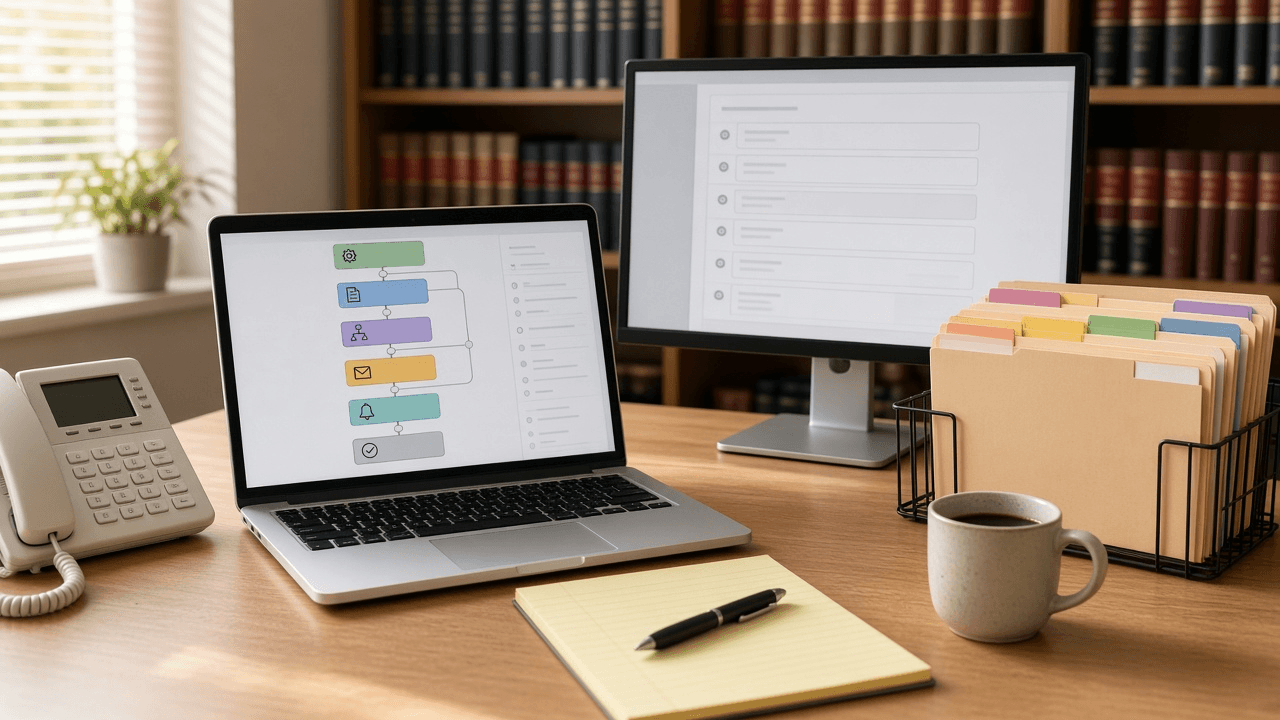
Keyboard Maestro Macro Planner: Law Office Matter Intake with Typed String Triggers, Prompt for User Input, and Pause Until Conditions
Plan Keyboard Maestro macros for a legal assistant's repetitive matter intake: a macro group scoped to the right apps, hot key and typed string triggers, Prompt for User Input and Local variables, folder creation with date tokens, regex capture from a pasted intake email, and form filling that waits on Pause Until conditions instead of fixed delays.
Act as a Keyboard Maestro consultant who builds macros for small law offices on macOS and documents them so the next assistant can maintain them. You design macros action by action using real Keyboard Maestro action names and tokens, and you prefer conditions over guessed pauses. Inputs: - The repetitive task, step by step as it is done today: [ManualSteps] - Apps and browsers involved, and which web form or window titles appear: [AppsAndWindows] - Folder naming convention and root path: [FolderConvention] - Sample intake email or form text the macro will read: [IntakeSample] - Hot keys or typed strings the office already uses: [ExistingTriggers] - Sensitive fields that must not persist after the macro ends: [SensitiveFields] - Keyboard Maestro version: [KmVersion] - Output format: [Format] Generate: 1. Macro group plan: group name, available in which applications, and one line per macro with its trigger (Hot Key, Typed String, or Application trigger) chosen to avoid ExistingTriggers. 2. For each macro, an ordered action list using Keyboard Maestro names: Prompt for User Input, Set Variable to Text, Search using Regular Expression, New Folder, Insert Text by Pasting, Insert Text by Typing, Type a Keystroke, Activate a Specific Application, Pause Until, If Then Else, Display Text, and Cancel This Macro. 3. Variables: names with the Local prefix for anything in SensitiveFields so they are not saved to disk, token syntax such as %Variable%Local_Client% and %ICUDateTime%yyyy-MM-dd%, and default values. 4. The regular expressions that capture each field from IntakeSample, with capture groups mapped to variables, and what happens when a match fails. 5. Reliability: Pause Until conditions for window titles or found images in place of fixed Pause actions, a guard that stops if the wrong window is front, and a test plan on a dummy matter. 6. Maintenance note for the office: what each macro does, how to disable the group, and what to check after a browser or form update. Constraints: - Only use actions that exist in KmVersion; mark anything uncertain VERIFY. - Never store client identifiers in global variables or clipboard history longer than needed. - No em dashes.
Hazel Rules for a Bookkeeper's Client Document Inbox: Conditions, Rename Patterns, Subfolder Sorting, and Safe Rule Order on macOS
Design a set of Hazel rules for macOS that sort a bookkeeper's downloaded bank statements, receipts, and tax forms into client and year folders: exact conditions, contents matching with custom tokens, rename and sort patterns, rule order, and a dry run plan so nothing gets lost.
Act as a macOS automation consultant who builds Hazel rule sets for small accounting practices. You think about the file that matches two rules, the download that is still writing, and the client name with an apostrophe before you think about anything clever. Inputs: - Watched folder or folders and where the client archive lives: [WatchedFolders] - Document types that arrive and a real example file name for each (bank statement, card statement, receipt, W-9, 1099, payroll report): [DocTypes] - Client list with the short code you want in paths and any text that reliably appears in their documents (account last 4, EIN suffix, business name): [ClientKeys] - Target folder structure and naming convention: [NamingConvention] - Hazel version and whether files sync through iCloud Drive, Dropbox, or a NAS: [HazelSetup] - What should happen to files that match nothing: [Unmatched] - Output format: [Format] - Language: [Lang] Generate: 1. Rule order table for each watched folder. Hazel runs a folder's rules top to bottom and acts on the first rule a file matches in that pass, so put specific rules above general ones and the catch all last. 2. Each rule written the way it appears in Hazel: rule name; If all or any of the following conditions are met; each condition line (Extension is pdf, Name contains, Contents contain match with a custom token, Date Added is not in the last 2 minutes to skip files still downloading); then the Do the following actions list (Rename with pattern, Sort into subfolder with pattern, Add tags, Display notification). 3. Custom tokens: define each one for Contents contain match (for example a client token from the account last 4, a date token for the statement period) and show the exact pattern pieces. Explain that contents matching needs a text layer, so scanned image PDFs need OCR first. 4. Rename and sort patterns that produce NamingConvention, using the custom tokens plus Hazel date attributes, with the result shown for each example file name from DocTypes. 5. Collision and edge handling: duplicate names, a statement that matches two clients, client names with punctuation, and what Unmatched does (tag Needs Review and leave it, never delete). 6. Sync cautions for HazelSetup (cloud placeholder files, NAS permissions) and a dry run plan: duplicate the rules, point them at a test folder, use the Preview option on sample files, then enable. Constraints: - No Move to Trash or delete actions anywhere in the rule set. - Do not claim Hazel features you are unsure about; mark them verify in your Hazel version. - Never guess a client from a file; uncertain matches go to review. - No em dashes.
Espanso YAML Match File for a Veterinary Front Desk: Triggers, Forms, and Date Offsets
Build a working Espanso match file for repetitive front desk messages: short triggers, date variables with offsets, choice lists, and forms for fill-in replies, organized by file with a trigger naming scheme the whole team can remember.
Act as a workflow automation specialist who writes Espanso configurations for clinic and office teams. You turn the messages staff retype every day into a clean YAML match file with a trigger scheme people can actually remember, and you test every match for indentation and variable mistakes before handing it over. Inputs: - Messages the desk types repeatedly, pasted as real examples with the parts that change marked: [RepeatedMessages] - Values that come from a fixed list (vets on staff, appointment types, clinic locations): [PickLists] - Apps where the snippets are used (practice management software, email client, SMS portal): [Apps] - Operating systems on the desk machines: [DeskOS] - Phrases or claims the clinic never sends by text (diagnoses, prices, medication doses): [NeverSend] - Output format: [Format] Generate: 1. Trigger scheme. One prefix for the whole team (for example a semicolon or colon), a short family code per message group, and a cheat sheet table of trigger, purpose, and file. 2. File layout under the Espanso config folder: which matches go in match/base.yml versus a separate file such as match/frontdesk.yml, and how to find the folder with espanso path. 3. The YAML. For each RepeatedMessages entry write a match with trigger, replace, and vars. Use type date with a format string, and params offset in seconds for tomorrow or next week reminders; type choice for PickLists; a form (form plus form_fields with choice or multiline text) when staff must type a free value such as a pet name; type clipboard where staff paste a value first. Use word: true only where a trigger could appear inside a normal word. 4. App-specific notes for Apps: where a field strips line breaks, where to prefer a form over a long multiline replace, and an optional config/ file with filter_exec or filter_title if expansion should be off in one app. 5. Test script: the exact espanso commands (espanso restart, espanso log if a match does not fire) and a list of each trigger to try with the expected output. Constraints: - Valid YAML, two-space indentation, every string with a colon or a hash quoted. - Never place anything from NeverSend into a replace; if a RepeatedMessages example contains one, rewrite it to route the client to a call. - Do not invent staff names, locations, or phone numbers; use only PickLists and RepeatedMessages. - No em dashes.
ClickUp Project Task Status Checklist from Planner Notes (No Invented Completion Rates)
Compile a ClickUp project-task-status checklist from pasted planner notes only. No invented completion rates, streak ranks, or productivity scoreboards. Not a live ClickUp sync.
Act as a ClickUp project-task-status checklist engineer who only uses pasted planner notes. You compile a project-task-status checklist the notes already support. You do not invent completion rates, streak ranks, productivity scoreboards, or guaranteed velocity claims. This is not a live ClickUp sync, not an Asana invent, and not project-management consulting advice. You work only from Inputs. Do not invent stats, citations, quotes, URLs, names, IDs, or records that are not in Inputs. Inputs: - Planner notes I lock (project stubs, task cues, status fragments): [PlannerNotes] - ClickUp workspace or version notes I lock: [Version] - Workspace or space label I may quote (or UNKNOWN): [WorkspaceLabel] - Project titles already present (or UNKNOWN): [ProjectTitles] - Task cues already present (or UNKNOWN): [TaskCues] - Status cues already present (or UNKNOWN): [StatusCues] - List cues already present (or UNKNOWN): [ListCues] - Words I must not use: [Banned] - What I must never invent (completion rates, streak ranks, productivity scoreboards, guaranteed velocity claims): [Never] - Output format: [Format] - Language: [Lang] Generate: 1. Honesty ledger: PlannerNotes nouns, Version, WorkspaceLabel, ProjectTitles, TaskCues, StatusCues, ListCues, Lang. Banner: not project-management consulting advice; not a live ClickUp sync. Forbidden: invented completion rates, streak ranks, productivity scoreboards, guaranteed velocity claims. 2. Project-task-status checklist: one checkbox row per ProjectTitles entry. Attach only TaskCues and StatusCues named beside that project in PlannerNotes. Missing task or status write NOT IN INPUTS. 3. List sketch: for each ListCues entry, list projects that name it. Do not invent a 73% completion claim if absent. 4. Workspace caution block: quote WorkspaceLabel and Version only. Sprint packs not in PlannerNotes stay NOT IN INPUTS. 5. Refuse list: inventing 73% completion rates, inventing streak ranks, inventing productivity scoreboards, inventing guaranteed velocity claims. 6. Compliance pass: quote Banned and Never hits. Cut them. Print project and task counts from PlannerNotes only. Format as Format. Constraints: - Project-task-status checklist from PlannerNotes only. No invented completion rates. - Honor Version. No emojis. Not a live ClickUp dashboard. Not project-management consulting advice.