How to Use the Nutrition Facts Layout Prompt to Hand Your Printer a Panel That Passes Review
Turn a food brand's approved nutrition values and package dimensions into a layout spec for the Nutrition Facts panel: which format fits the available label area, the type sizes and rule weights to set, when a dual column is required, and a prepress checklist before the artwork goes to the printer.
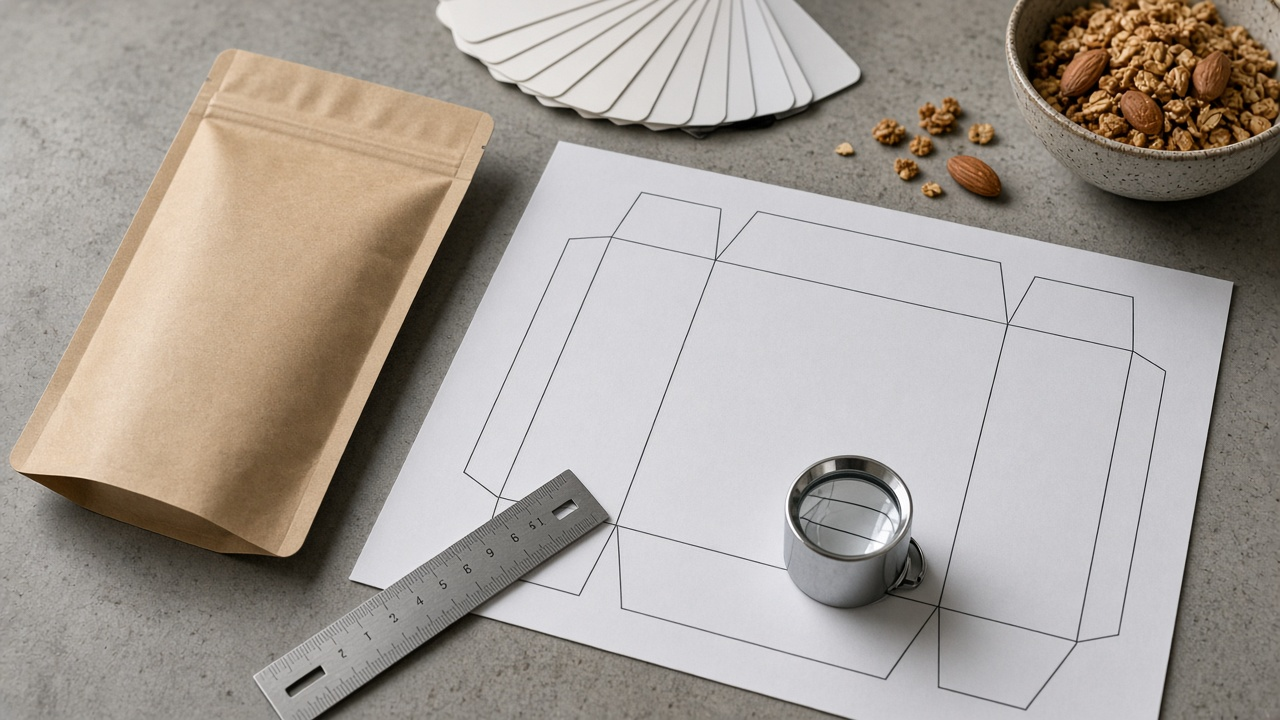
The Nutrition Facts panel is the one part of food packaging where the designer does not get to make the rules. Type sizes, rule weights, nutrient order, and even which format you may use depend on regulations and on how much label area the package has. Get it wrong and the fix usually means new plates or a reprint. The Nutrition Facts Panel Layout Spec for Packaging Designers: Format Choice by Label Area, Type Size and Rule Hierarchy, Dual Column Triggers, and a Prepress Checklist prompt turns your approved values and panel dimensions into a layout spec you can build from and check against.
What the prompt produces
- A format decision between standard vertical, tabular, linear, or simplified, based on your label area, with a fallback.
- A dual column check that tells you whether per serving and per container columns are required.
- A type size and weight table for every element on the panel, each marked for confirmation against the regulation.
- A rule hierarchy for hairlines and bars, matched to the thinnest line your printer can hold.
- A nutrient order list with the right indentation for subcomponents.
- A face layout note for the ingredient list, allergen statement, and other required elements.
- A prepress checklist for type, color, outlines, and print scale.
- Questions for the food scientist or regulatory reviewer.
How to fill the inputs
PackageAndPanels needs real measurements for each face, in inches. Label area drives the format decision, so a rough guess is not good enough. Measure the dieline, not a mockup photo.
ApprovedValues should come straight from your food scientist, lab report, or nutrition software output that someone qualified has signed off on. The prompt never calculates or rounds values. Its job is layout, and it will flag values that look inconsistent, such as added sugars larger than total sugars, rather than quietly fixing them.
ConsumptionCase answers a question designers often miss: could the package reasonably be eaten in one sitting, or does it hold between two and three servings? That can trigger a dual column layout, which changes the panel width and the whole face.
OtherElements lists what has to share the face with the panel. The ingredient list and allergen statement need space, and crowding them is a common reason for late layout changes.
BrandAndPrint covers your approved typeface and the print process. Flexographic printing on a pouch holds fine lines differently from offset on a carton, so the minimum line weight matters.
Reading the example output
The example lays out a panel for a granola pouch with a back face of about 37.5 square inches.
- The format decision picks standard vertical because it fits, while noting that the smaller label area may also allow tabular or linear formats.
- The dual column check says no, because the pouch holds six servings.
- The type table lists sizes for the heading, serving size, Calories line, nutrients, and footnote, each marked for confirmation.
- The rule hierarchy sets hairlines at the 0.5 point the flexo printer can hold reliably.
- The nutrient list uses the approved values exactly and confirms added sugars sit correctly under total sugars.
Tips for better results
- Build the panel as its own artboard at 100 percent scale, then place it on the dieline. Check sizes on the artboard, not on a reduced view.
- Ask the printer for a line weight test on your actual substrate before final art.
- Keep the panel black on white even when the brand palette is bold. Readability is the point.
- Save the spec with the artwork files so the next flavor in the line starts from the same rules.
Mistakes to avoid
- Do not scale the finished panel to fit. Scaling shrinks the type below the minimum sizes you worked to set.
- Do not tint the panel background to match the bag color without checking contrast and the rules on color.
- Do not edit nutrition numbers in the design file. Every change goes back through whoever approved the values.
Who it is for
Packaging designers, brand designers at food startups, co packer art departments, and freelance designers who take on food clients and want a clear spec instead of a guess.
A practical workflow
Get approved values and the final dieline first. Run the prompt and confirm every marked measurement against the regulation or with your reviewer. Build the panel artboard, check it at full scale, then place it and lay out the ingredient and allergen block next to it. Send a proof to the food scientist before the printer, and keep the confirmed spec as your template for the rest of the product line.
Related PromptDig links
Open the Nutrition Facts Panel Layout Spec for Packaging Designers: Format Choice by Label Area, Type Size and Rule Hierarchy, Dual Column Triggers, and a Prepress Checklist prompt with your panel sizes and approved values. For more design prompts, Browse more prompts. If you have a packaging checklist other designers could use, Share a prompt.