Cursor Prompts for UI Design: 10 for Mockups and Components
10 Cursor prompts for UI design: turn mockups into components, map design tokens, write .mdc rules, check contrast and focus, and compare pages with @Browser.
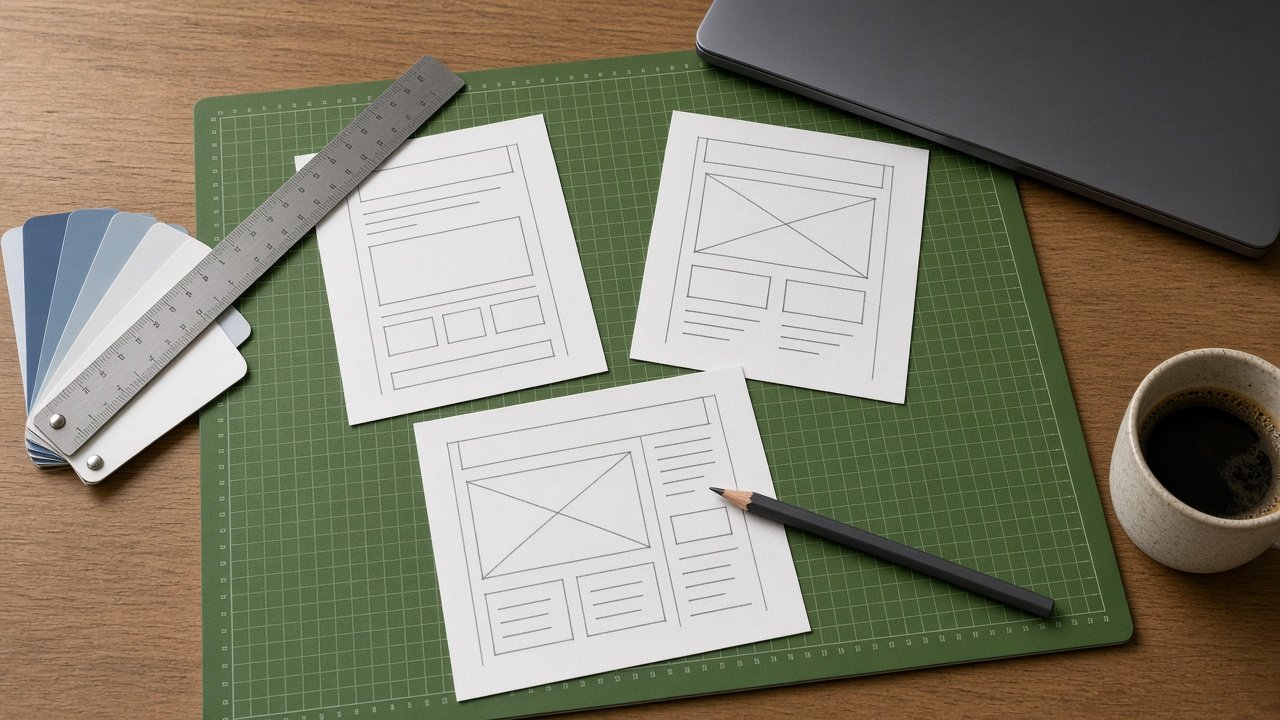
Cursor prompts for UI design help you go from a mockup to a working, accessible component without guessing at colors or spacing. Paste the screenshot into Cursor's Agent chat, @-mention your component folder and tokens file, and ask for a token map and questions before any code. The 10 prompts below cover building from a mockup, keeping a design system consistent, accessibility checks, and visual QA in Cursor's browser.
From mockup to code
1. Mockup read-back
I pasted a mockup of [screen]. Before writing code, list every element you see, the layout, and anything unclear in the image as questions. Do not guess colors or sizes.
2. Component from a screenshot
Build [component name] in [framework and styling] from the pasted mockup, in @[component folder]. Reuse [existing components] and use only the tokens in @[tokens file]. Show the props table first.
3. Token map
Map every color, spacing, radius, and font size in the pasted mockup to a token in @[tokens file]. Mark any value with no matching token as "no token: ask" instead of adding a new one.
Keep the design system consistent
4. Project rule for UI files
Write a .cursor/rules/[name].mdc file with globs for [folder pattern] that tells Agent to use only our tokens, reuse [components], and keep a visible focus style on every control.
5. Hard-coded value audit
Search @[folder] for hard-coded hex colors, pixel sizes, and font sizes. List each with file and line, and the token that should replace it, or "no token" if none fits.
6. Variants without new styles
Add [variant names, for example compact and highlighted] to @[component file] using existing tokens only. Show the props change and one usage example for each variant.
Accessibility checks
7. Contrast check for token pairs
For each text and background token pair used in @[component file], calculate the WCAG contrast ratio and mark pass or fail for [WCAG level], 4.5:1 for normal text and 3:1 for large text and control borders.
8. Keyboard and focus pass
Review @[component file] for keyboard use: tab order, visible focus, Escape and Enter behavior, and labels for icon-only buttons. List each fix with the code change.
Visual QA in Cursor's browser
9. Compare the page with the mockup
@Browser open [local URL] and compare [section] with the attached mockup at [widths]. List differences in spacing, color, type size, and borders, then fix them in @[component file].
10. Responsive check
@Browser check [page] at [breakpoints]. Take a screenshot at each width, tell me where layout breaks or text wraps badly, and propose the smallest fix for each.
Build one component end to end
The flagship Cursor UI Design Prompt: Mockup to Component and .mdc Rule reads back your mockup, maps it to tokens, checks contrast, writes the component, covers states and breakpoints, adds a scoped project rule, and ends with an @Browser comparison. Its example builds a three-card pricing section in React and Tailwind and flags a badge color that has no token.
Tips for UI work in Cursor
You can drag an image into the Agent chat or paste a screenshot with Cmd+V. Project rules live in .cursor/rules as .mdc files; use the rule type Apply to Specific Files for UI folders, and treat a single .cursorrules file as the legacy format. In the Agents Window browser, Design Mode (Cmd+Shift+D) lets you click an element on the running page and describe the change.
Related prompts
If you design with Claude Code instead, use the Claude Code website design session planner. For rule sets, see Cursor rules for React. To audit color, run the WCAG 2.2 UI contrast audit planner, and to set up tokens, start with a Tailwind theme config from a brand brief.
New to the repo? Start with Cursor prompts to understand a codebase.
Find more in the Coding category, look through Browse, or post your own on Share.